

Fast communication has become one of the biggest reasons why modern teams prefer Slack over traditional workplace messaging tools. Whether teams are handling projects, approvals, client coordination, or internal updates, instant collaboration helps work move faster.
That is where a group chat in Slack becomes extremely useful. Instead of managing long email threads or switching between multiple conversations, teams can create focused discussions for projects, departments, or quick decision-making.
In this blog, we will walk through how to create a group chat in Slack step-by-step, important settings you should know, practical tips for managing group chats for work, and how businesses simplify collaboration during workspace transitions using a Slack migration tool.
Steps to Create a Group Chat in Slack
Creating a group chat in Slack is very simple and only takes a few minutes. Here’s the step-by-step process teams follow to start collaborating quickly.
Step 1: First, open your Slack workspace and go to the left sidebar. Under the Direct Messages section, click the “+” icon to start creating a new conversation.

Step 2: Next, type the usernames or display names of the people you want to include inside the “To:” field. Slack will automatically show matching users while you type.

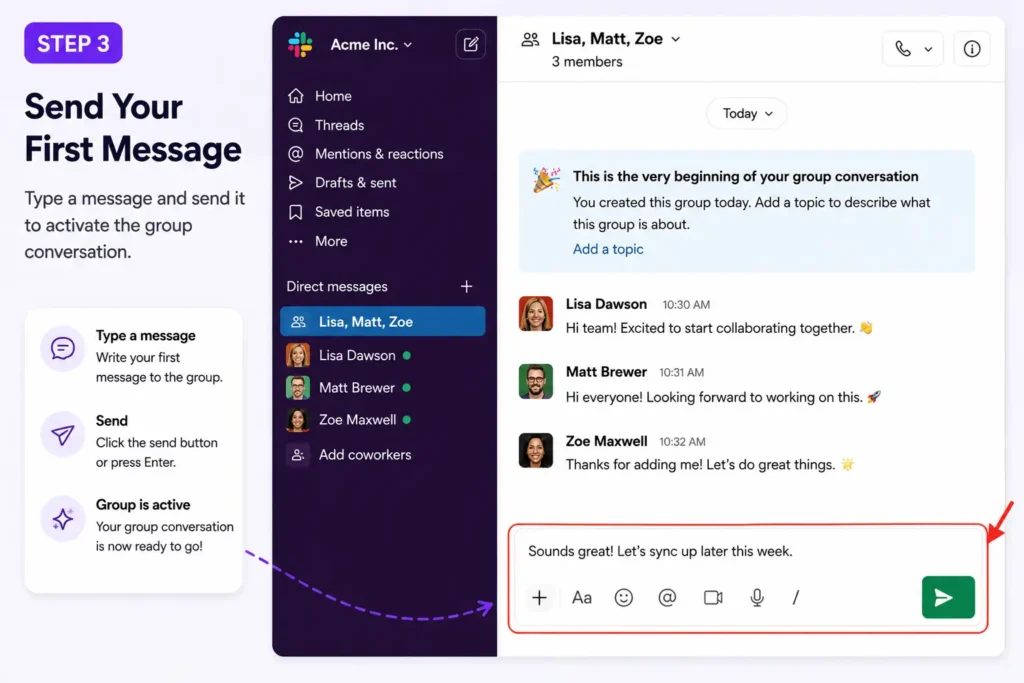
Step 3: After adding participants, send your first message to activate the conversation. Once the message is sent, your group chat in Slack becomes active and ready for collaboration.
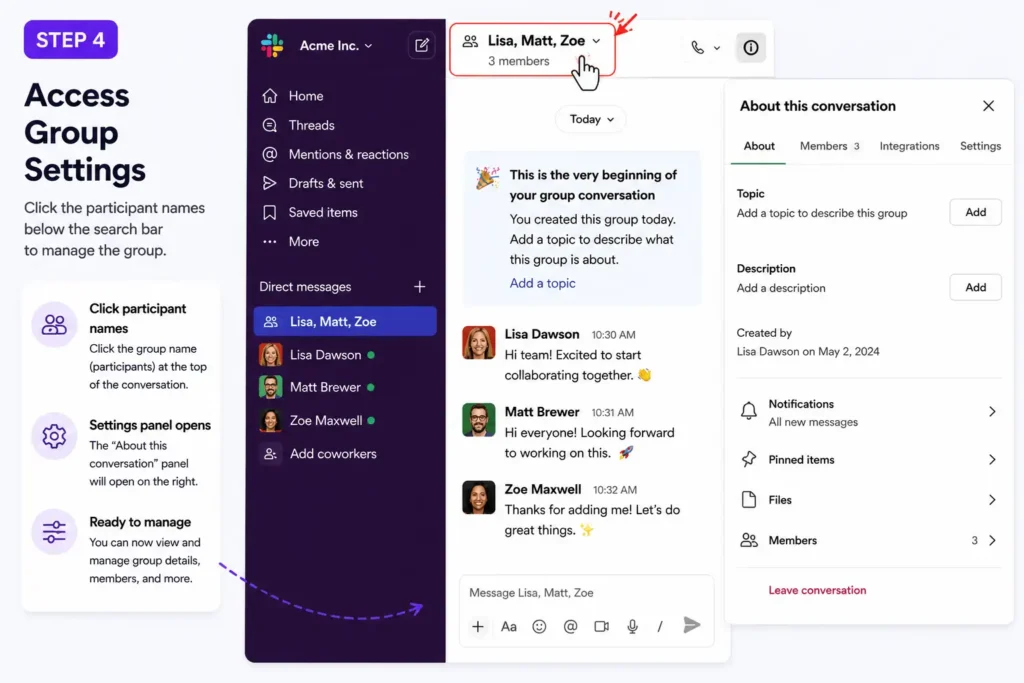
Step 4: Now, click the participant names displayed at the top of the conversation. From there, you can:
- Rename the group chat
- Add a group topic
- Manage notifications
- View member details
- Update conversation settings
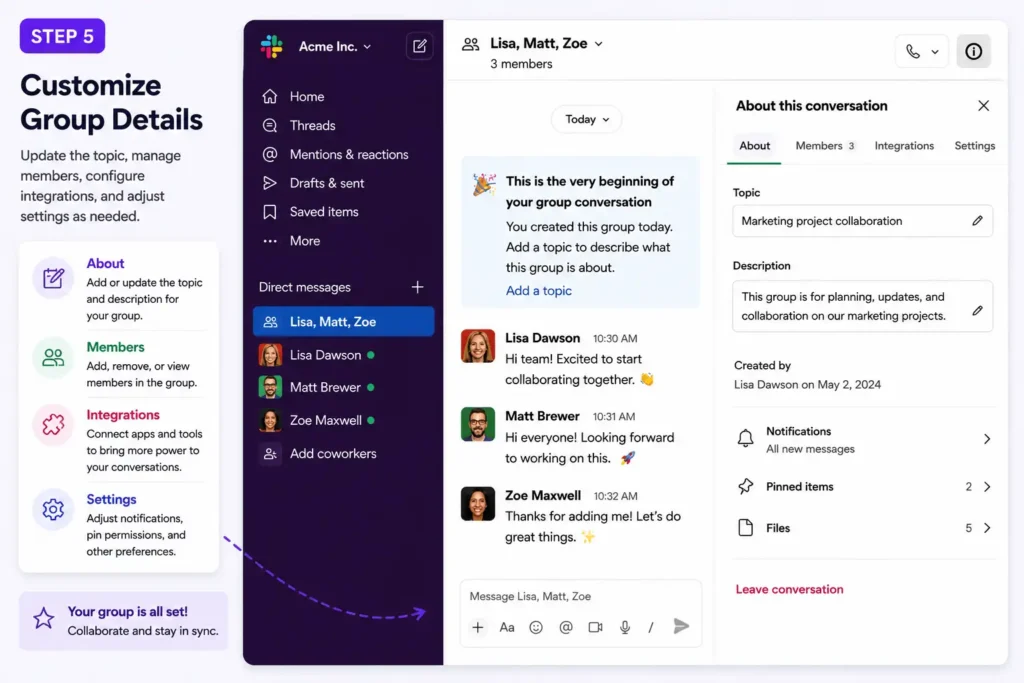
Step 5: If your project grows later, you can easily add more people from the Members section inside the chat settings. You can also remove inactive participants whenever required.
Step 6: If required, open the Integrations section to configure email integrations and connected workflow tools directly inside the Slack chat.

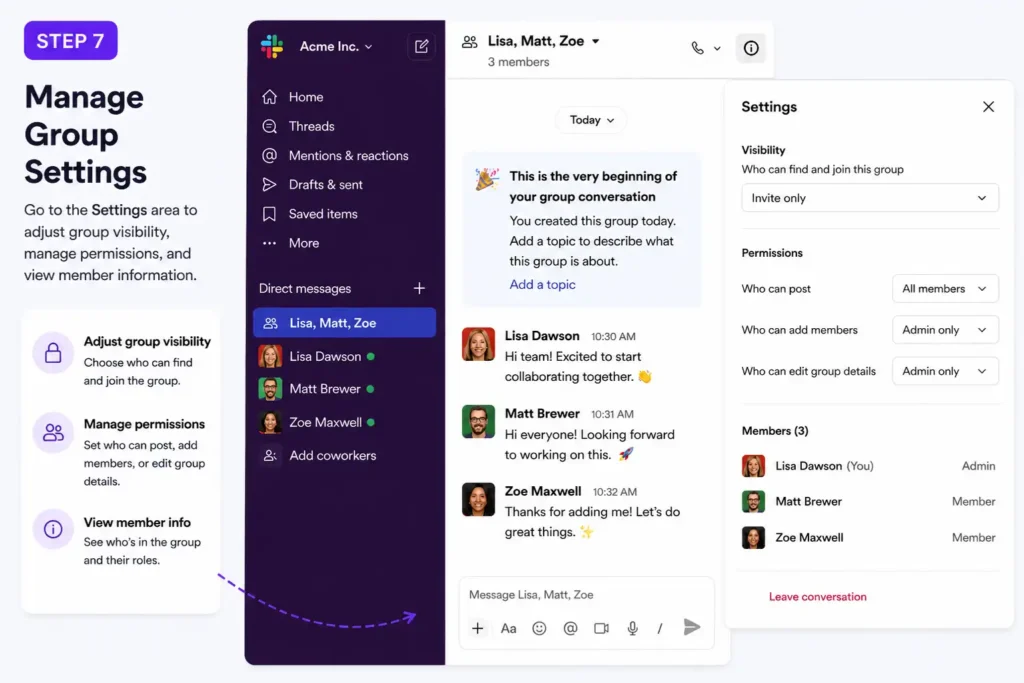
Step 7: Finally, go to the Settings area to adjust group visibility, manage permissions, and view member information for better collaboration management.
Practical Tips for Managing Group Chats Efficiently
Rename Chats Based on Projects or Teams
Generic names create confusion later. Instead of random chat titles, use names connected to departments, campaigns, projects, or clients so your Slack communication stays organized across teams.
Add New Team Members Without Restarting Conversations
You do not need to create a brand-new conversation every time someone joins a project.
Slack allows you to add people directly into existing chats while keeping the conversation history accessible for smoother onboarding.
Use Channels for Larger Teams
A group chat in Slack works best for smaller collaboration groups.
However, Slack group DMs currently support a maximum of 9 participants. If your discussion includes larger teams, departments, or organization-wide updates, creating dedicated Slack channels becomes a much better option.
This keeps communication cleaner and more scalable for growing businesses.
Add Team Members Only When Necessary
Many businesses eventually overload conversations with too many participants.
Smaller, focused Slack chat groups usually work better for faster communication and cleaner collaboration.
If discussions grow larger over time, creating a dedicated channel often becomes a better option.
How Move to Slack Helps During Slack Migration
As organizations scale collaboration across departments, many businesses eventually migrate from platforms like Microsoft Teams, Discord, or Google Chat to Slack.
This is where Move to Slack helps simplify the migration process.
Instead of manually rebuilding conversations, channels, users, and collaboration structures, businesses can use the platform as a Slack migration tool to organize communication environments more efficiently.
Move to Slack helps organizations:
- Simplify workspace migration planning
- Preserve communication structure during transitions
- Organize users and channels properly
- Reduce manual migration workload
- Improve collaboration continuity after migration
For growing businesses managing large-scale Slack communication environments, structured migration planning helps teams stay productive without operational disruption.
Conclusion
Creating a group chat in Slack is one of the easiest ways to improve team collaboration, speed up communication, and reduce unnecessary email dependency across organizations.
Whether you are managing quick internal discussions or building structured group chats for work, Slack offers flexible tools that help teams collaborate more efficiently. And for businesses planning workspace transitions, solutions like Move to Slack help simplify migration workflows while keeping Slack communication organized and scalable.
Frequently Asked Questions
To create a group chat in Slack, open your workspace, click the “+” icon next to Direct Messages, add the people you want to include, and send your first message. Your group chat will then become active for collaboration.
A group chat in Slack is best for smaller conversations and quick collaboration between limited participants. Slack channels are more suitable for larger teams, departments, and long-term project communication.
Slack group DMs currently support up to 9 participants. If your team grows larger, Slack recommends creating a dedicated channel for better communication management.
Yes, Slack allows users to add new participants to existing group chats without creating a new conversation. Newly added members can also access previous chat history depending on workspace settings.
Businesses can switch from Microsoft Teams to Slack by using migration solutions like Move to Slack. The platform helps organizations transfer users, channels, and communication structures more efficiently while reducing manual migration effort and maintaining collaboration continuity during the transition.