Setup — 14 Steps
1
Step 1
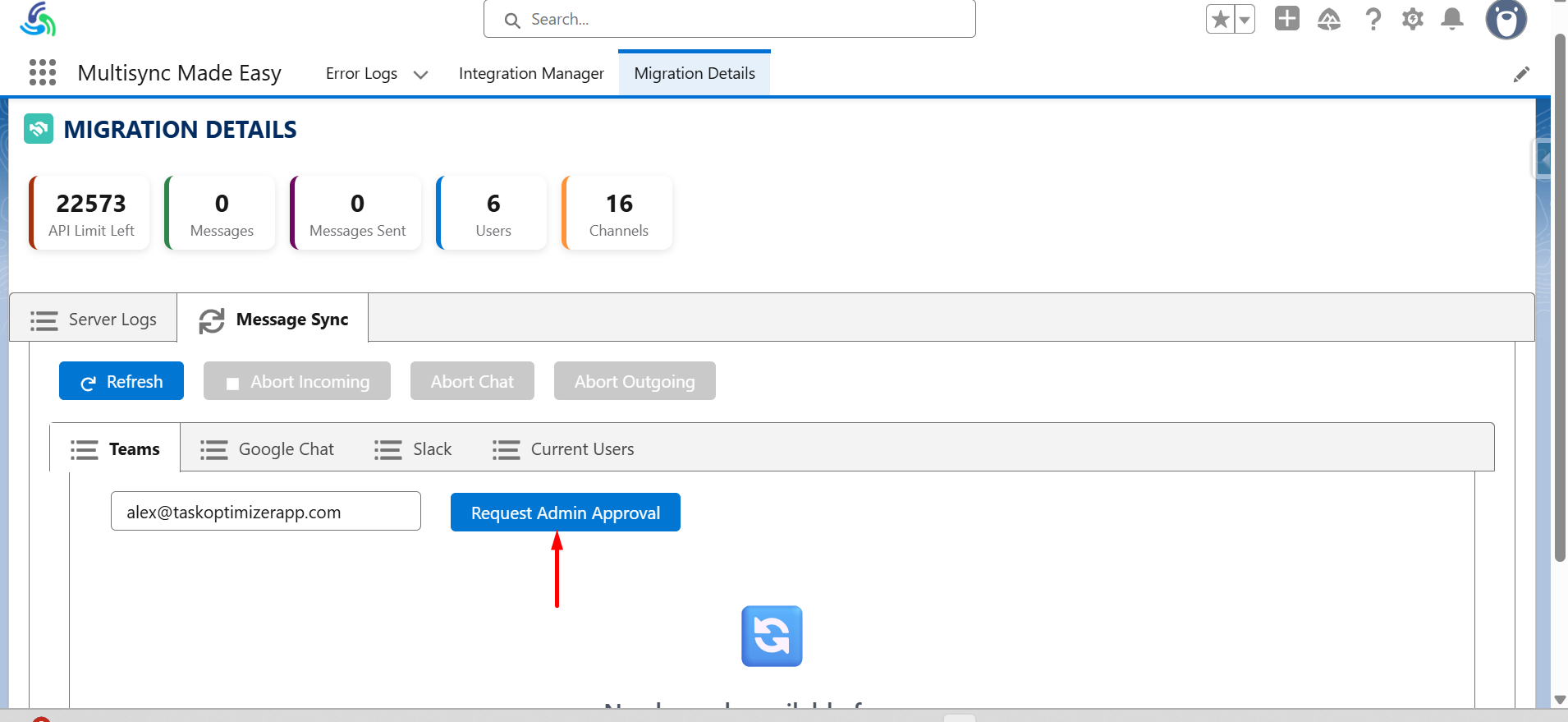
In Migration Details Select the “Message Sync Tab” and then click on “Google Chat” and enter the admin Email and Request Admin Approval. Give the Approval from the Admin Email, then refresh.
▾
2
Step 2
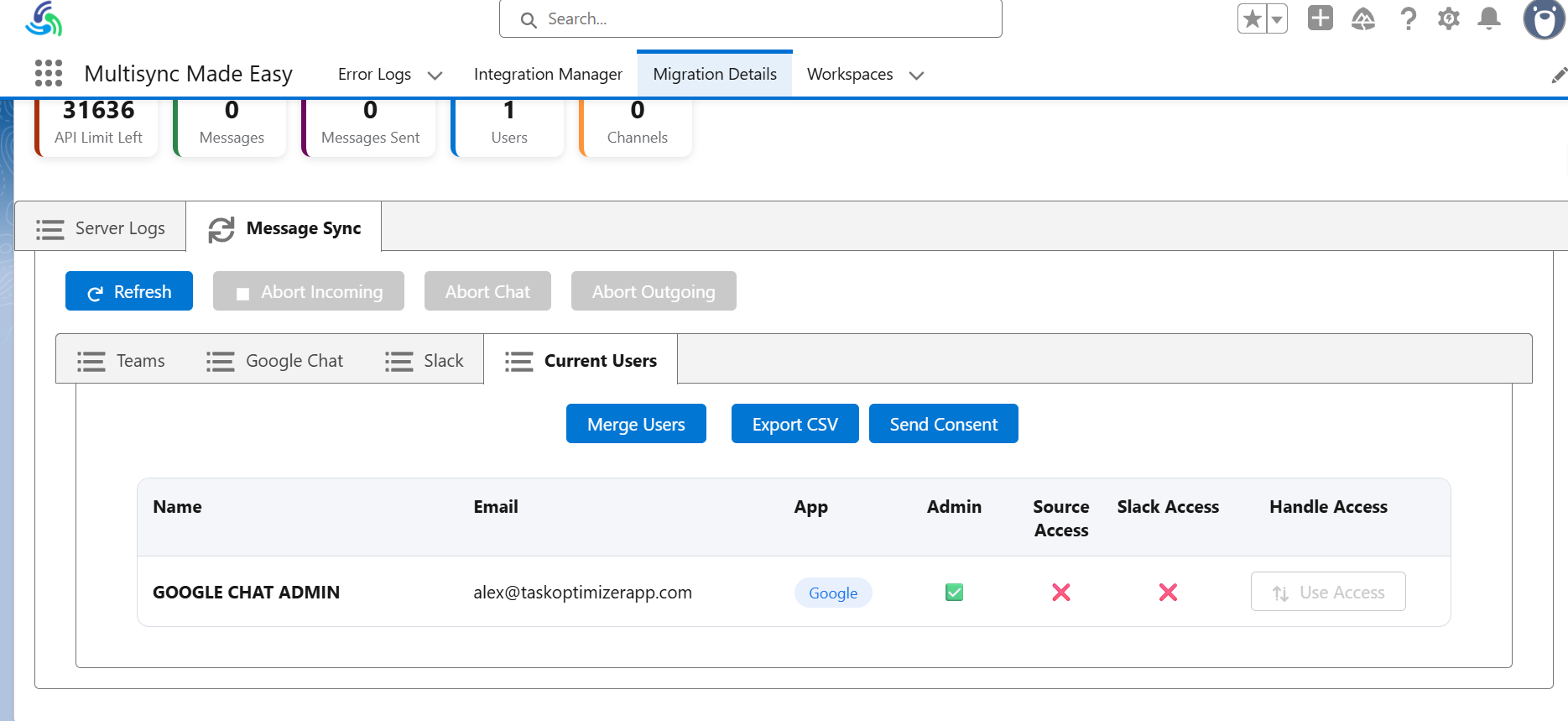
In Current Users refresh and get “Google chat Admin” and Export the CSV file and replace the old file.
▾
3
Step 3
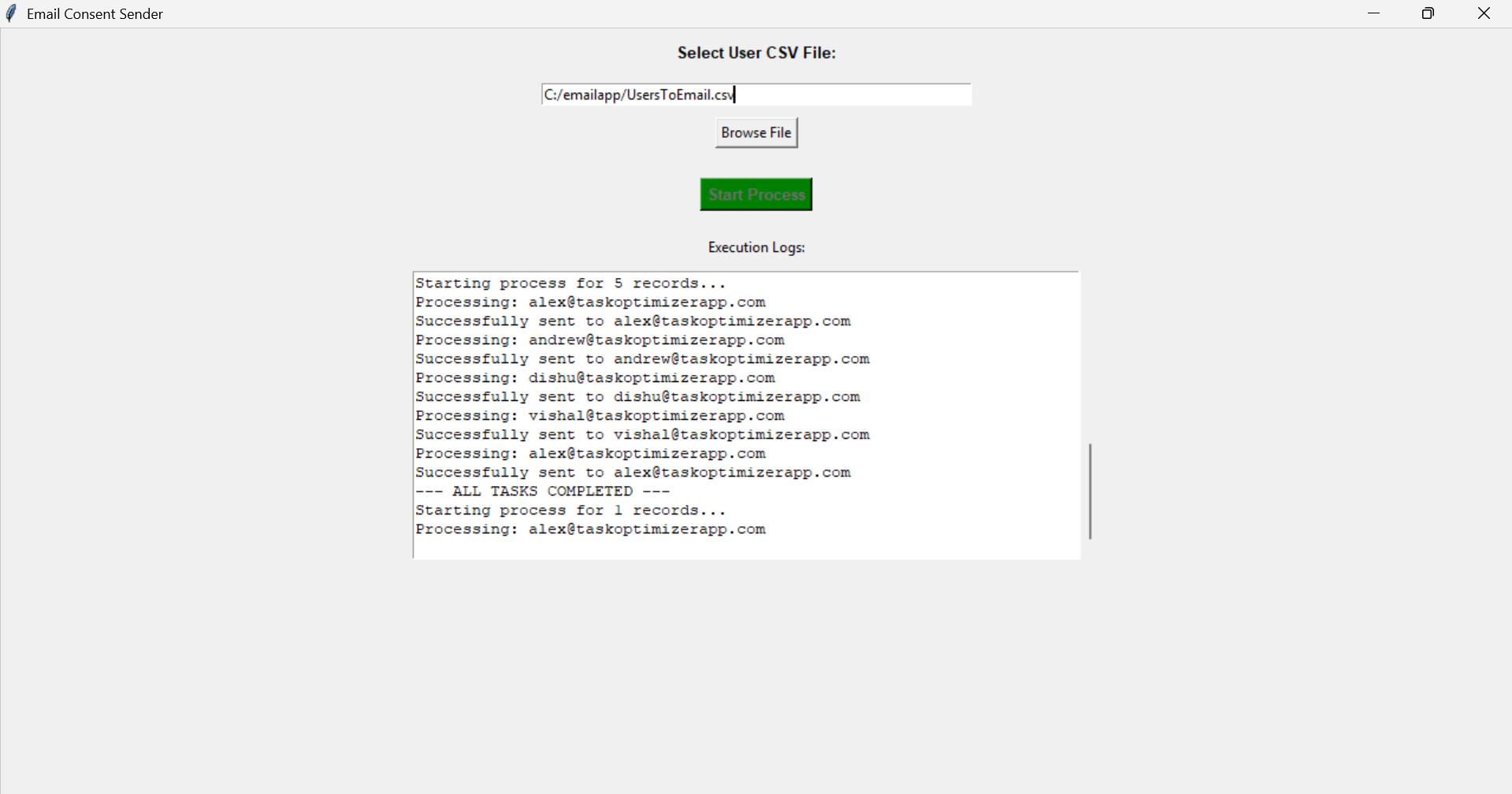
From email app Browse the CSV file and click on “Start Process Button” to send the email to the Google chat Admin Email.
▾
4
Step 4
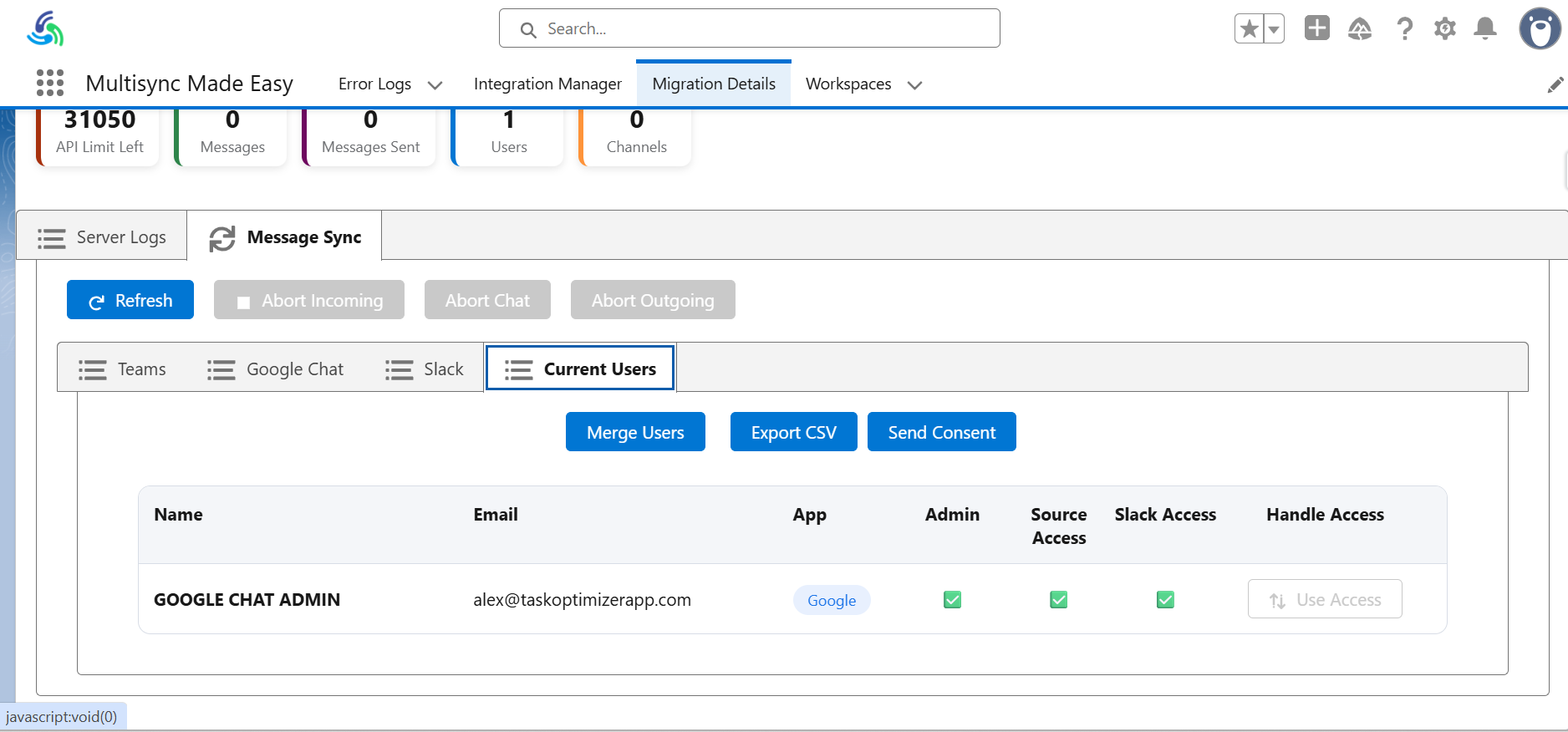
In email Give the Consent by clicking on the “PROCEED TO AUTHENTICATION”, then accept the terms and conditions and proceed then Choose the Admin Account and Allow the authentication for “Source Access”.and get the slack consent for google chat admin(slack consent is given manually for admin app as we do not have the enterprise slack).
▾
5
Step 5
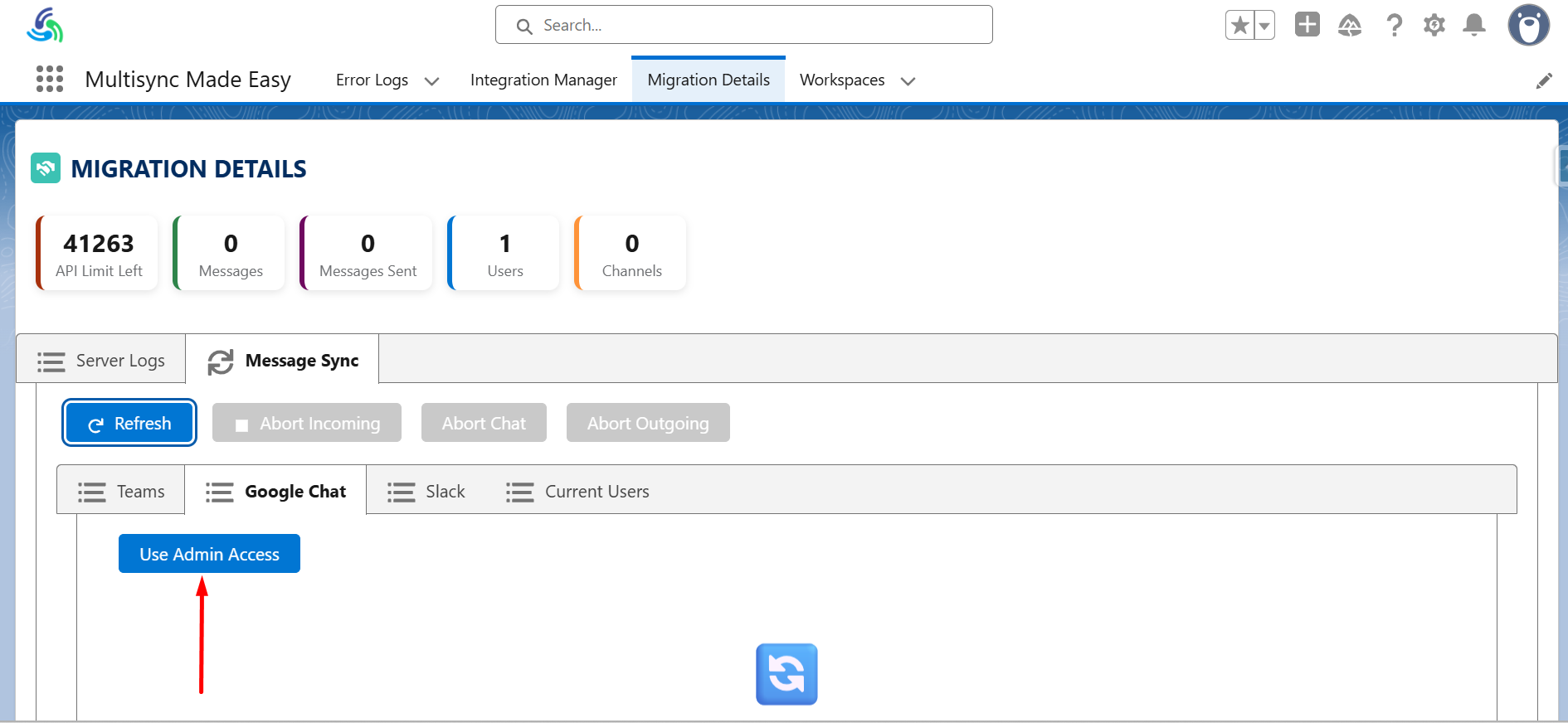
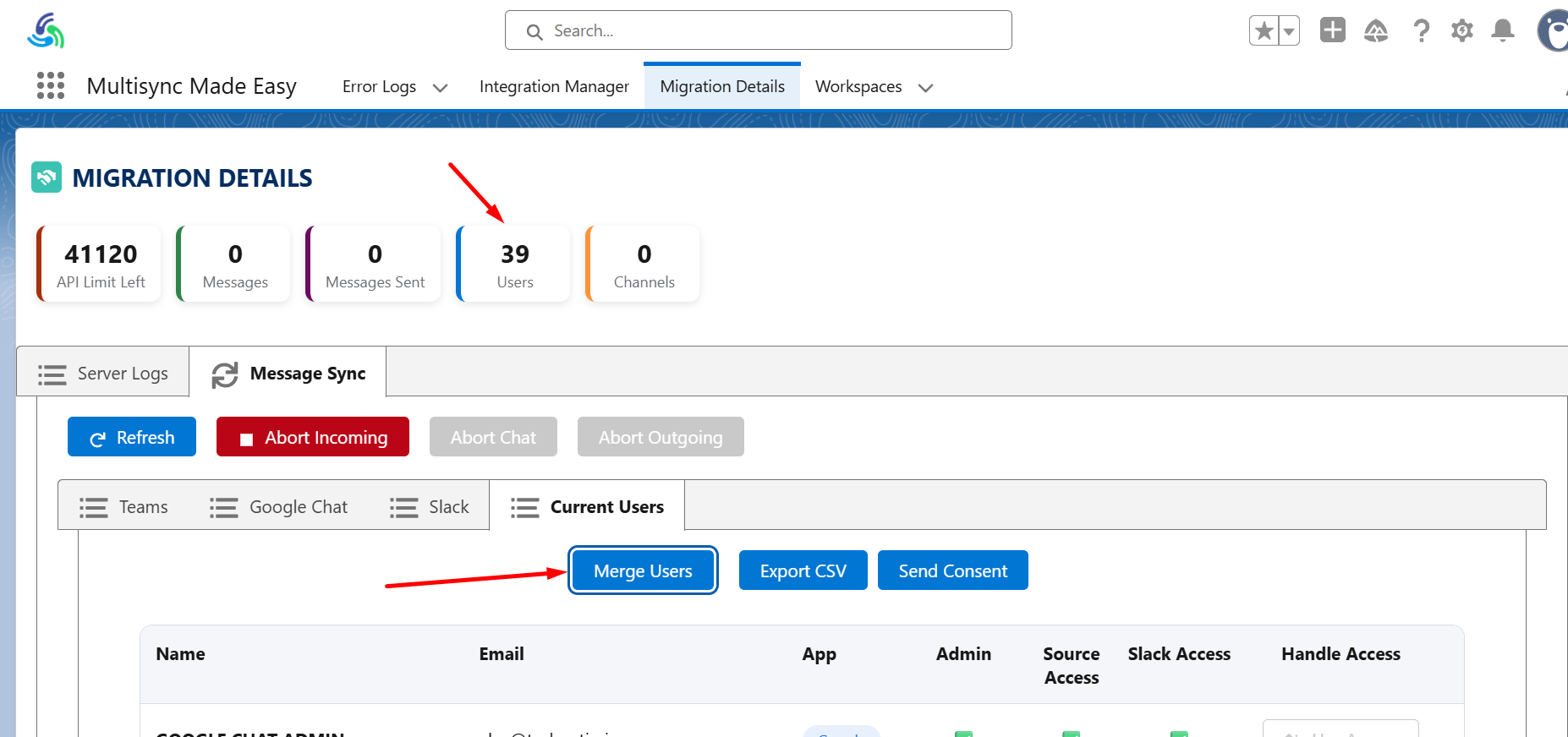
In google chat refresh and click on “use admin access” and then fetch the users from both the google chat and the slack and check the users in current users and then “merge the users”.
▾
6
Step 6
After that, In current users export the csv file and send the email by browsing the new csv file from Email app. Email will be send on all user emails.
▾
7
Step 7
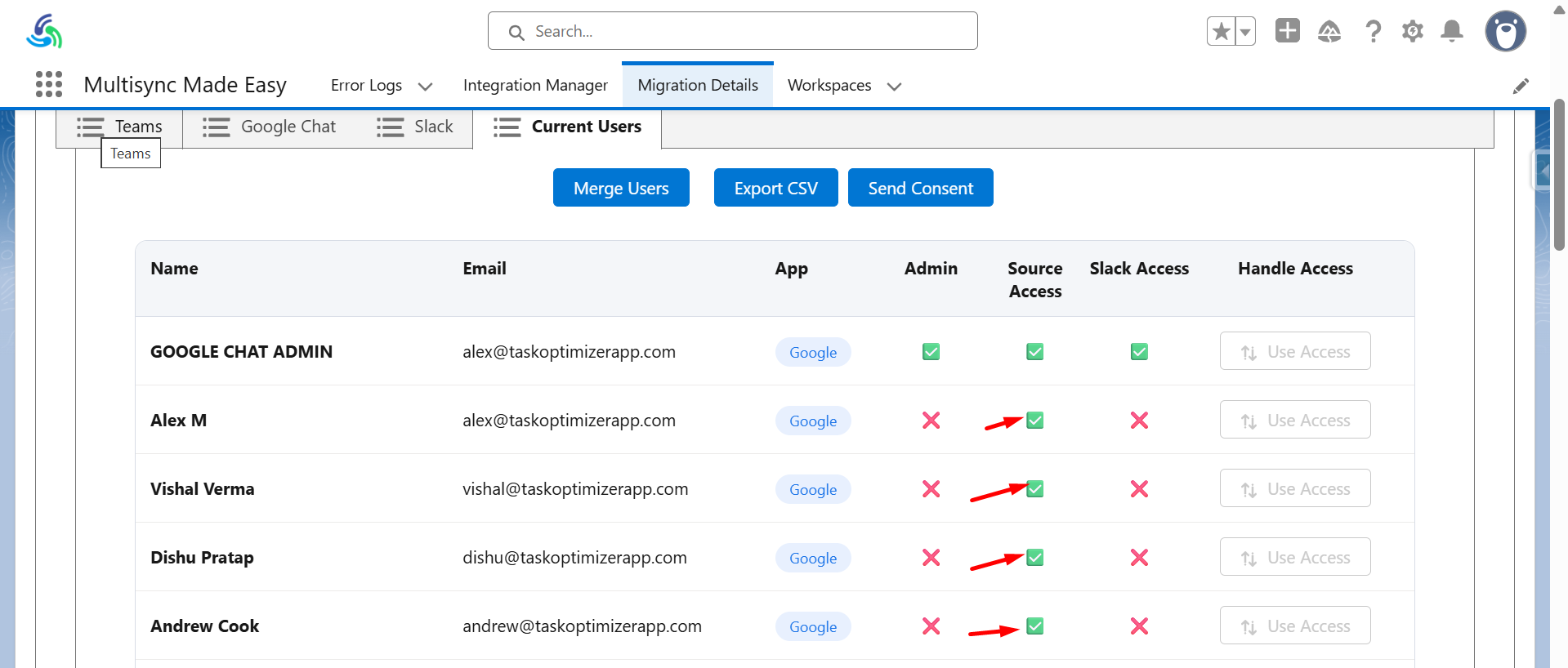
Give the Consent needed for Google and export csv again and send email for slack and from all the emails of users give slack consent. (ignore the alex slack admin email)
▾
8
Step 8
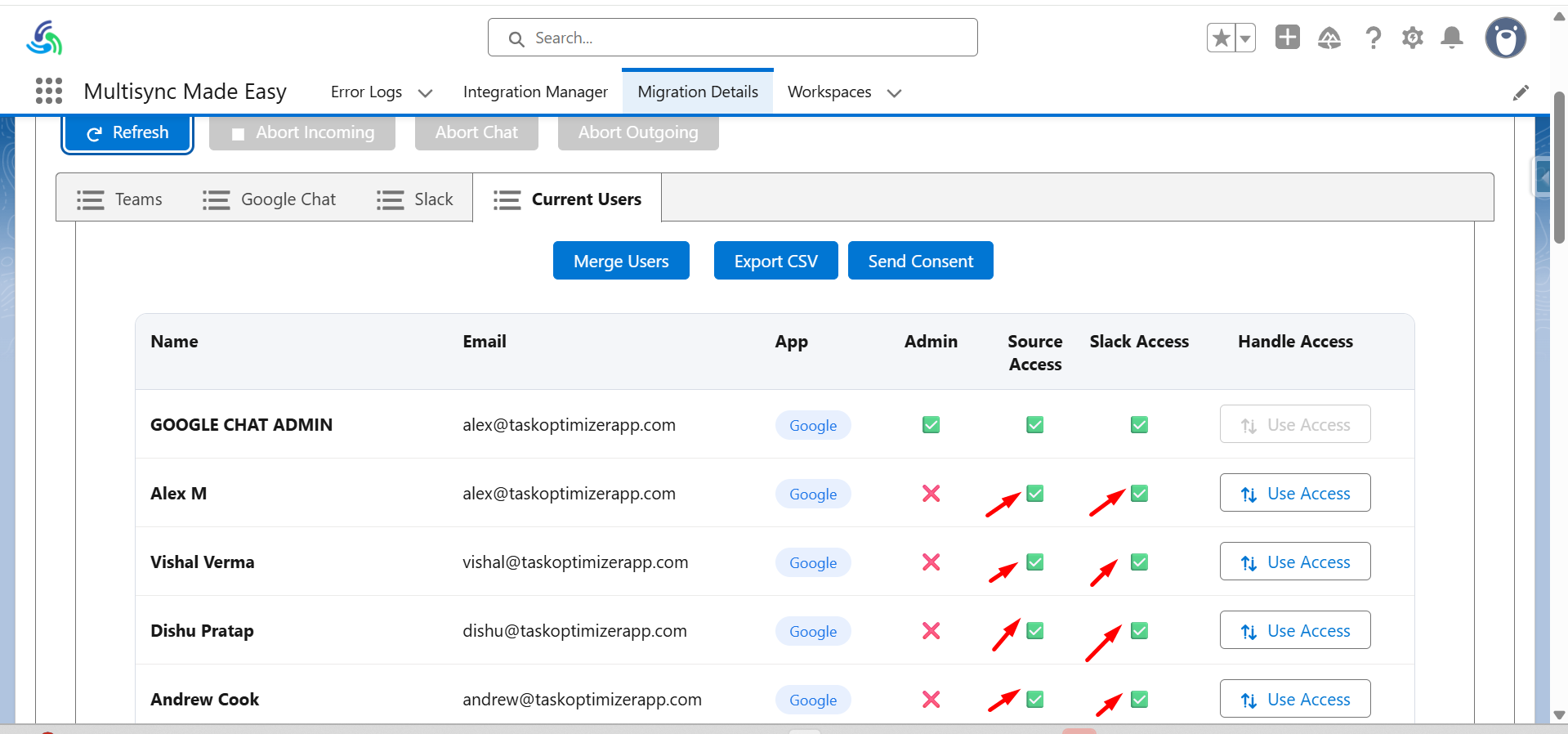
Refresh and check that “Source Access” and ”slack access” is given to all the users.
▾
9
Step 9
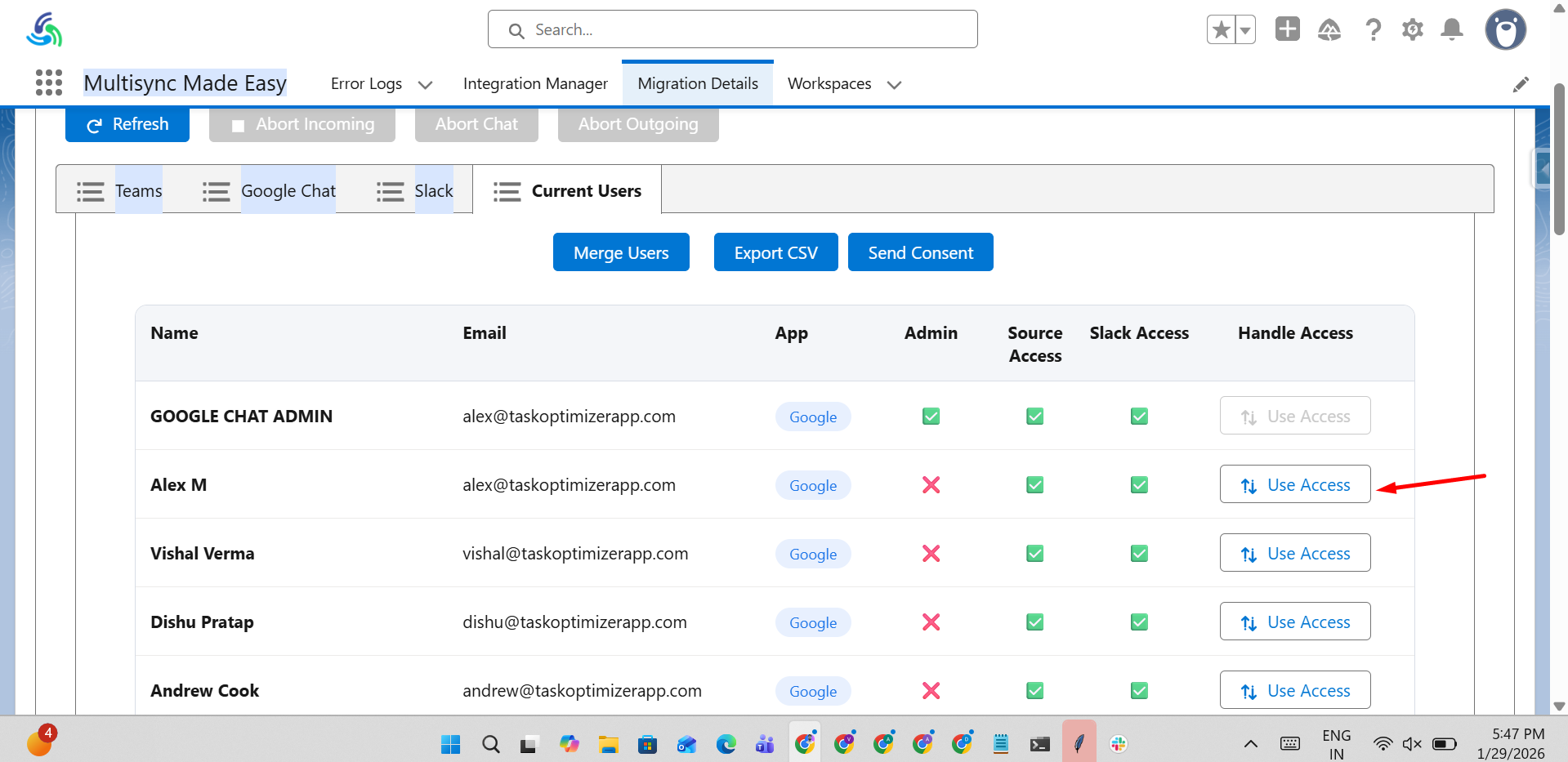
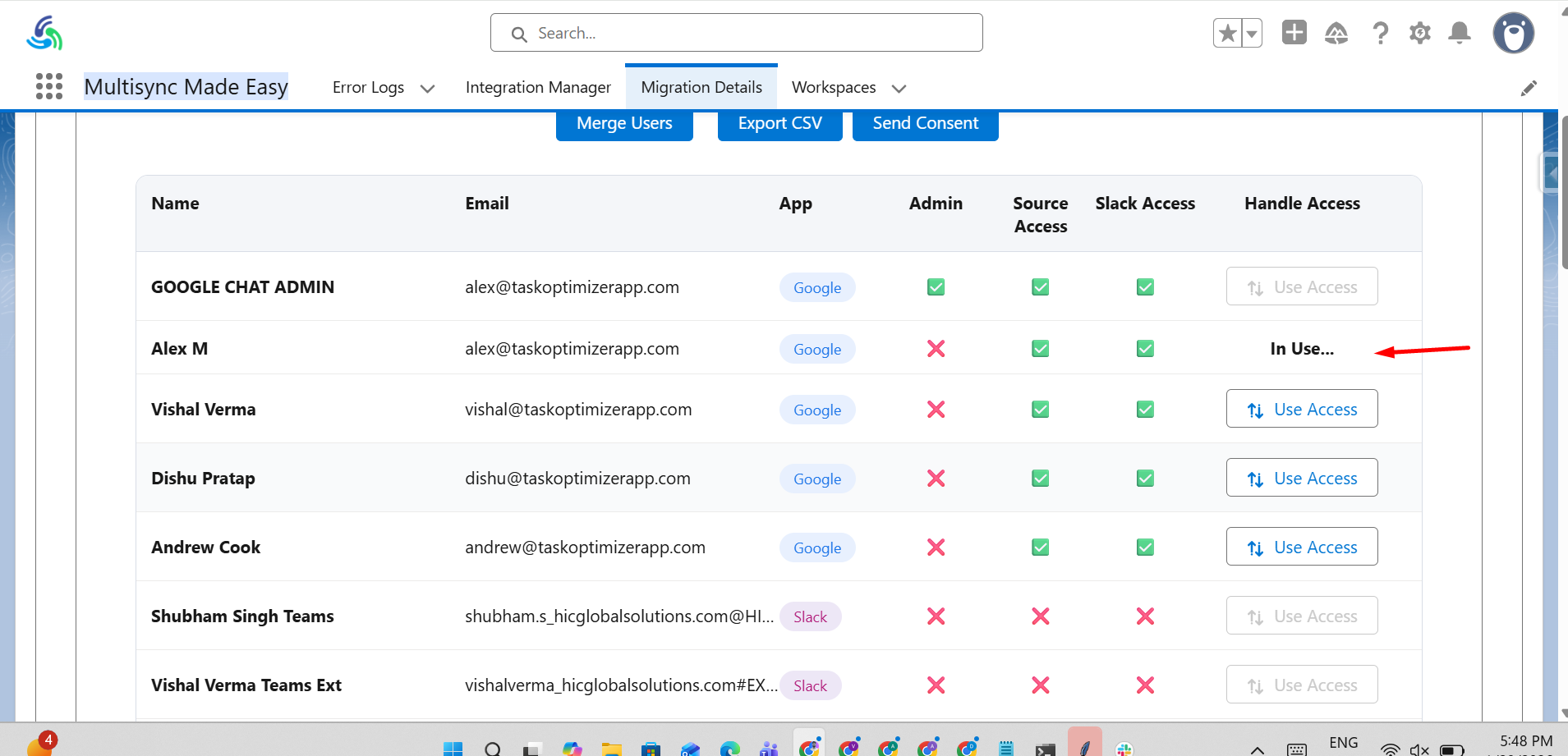
Then in current users click on “USE Access" of any channel.
▾
10
Step 10
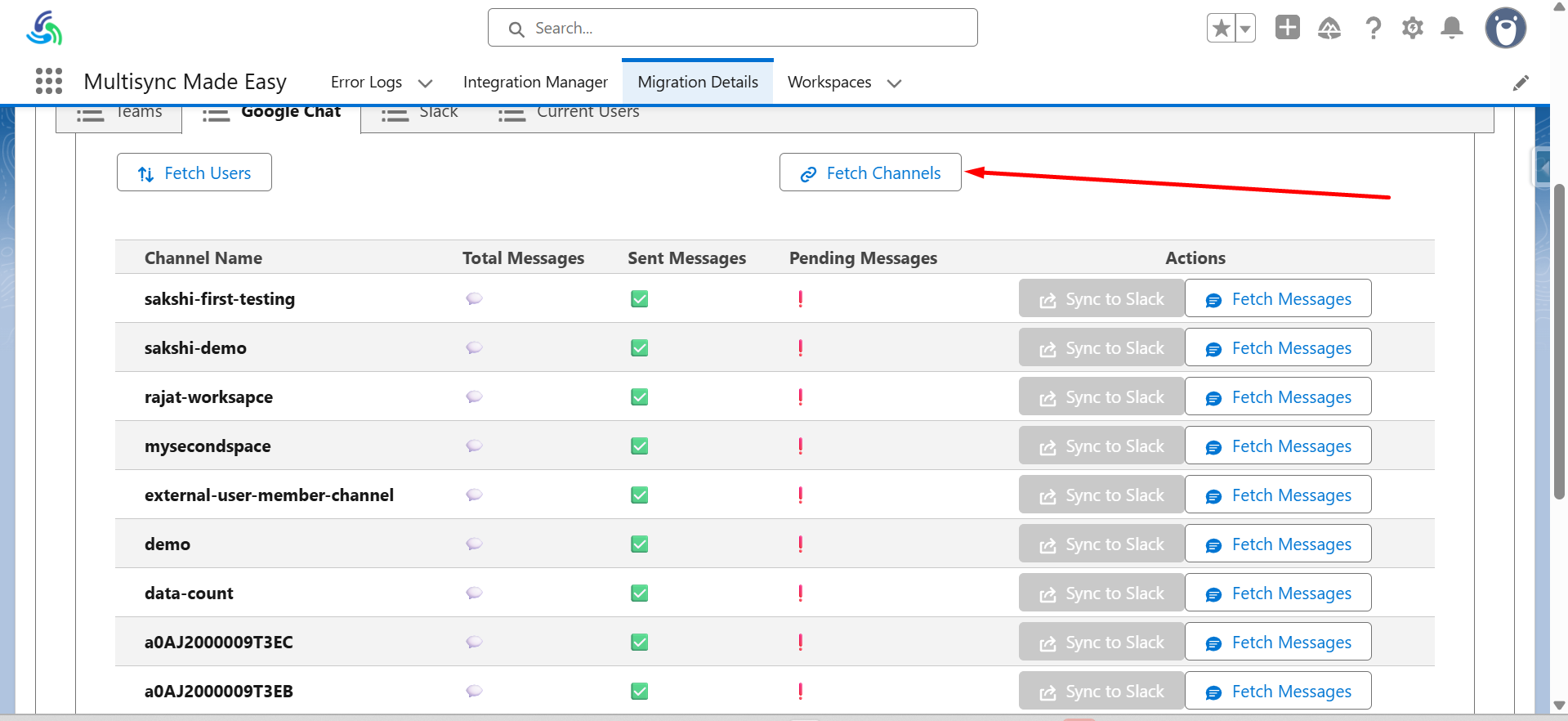
In Google Chat Fetch The Channels.
▾
11
Step 11
Then channels will show on “Google Chat App” and also on the “Slack app” on Vishalverma slack only.
▾
12
Step 12
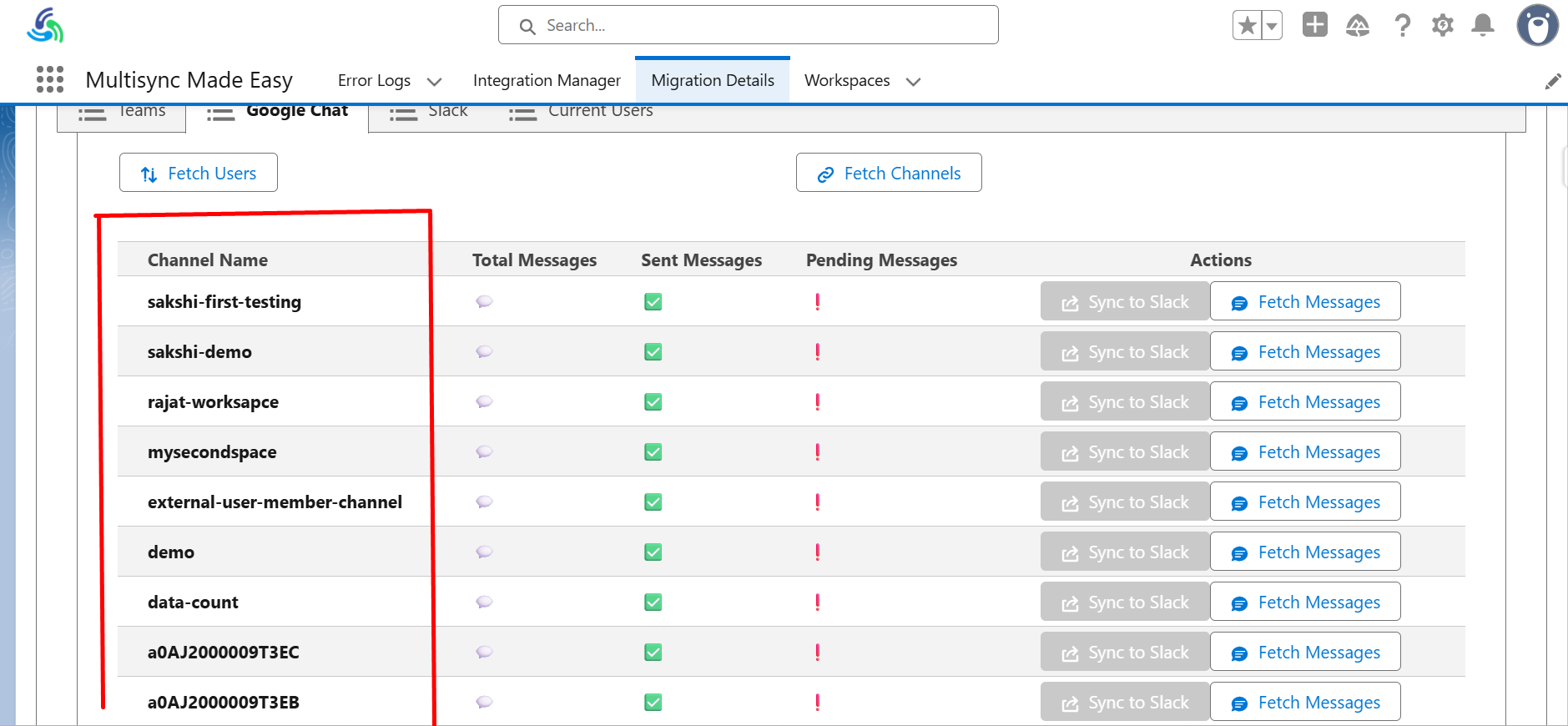
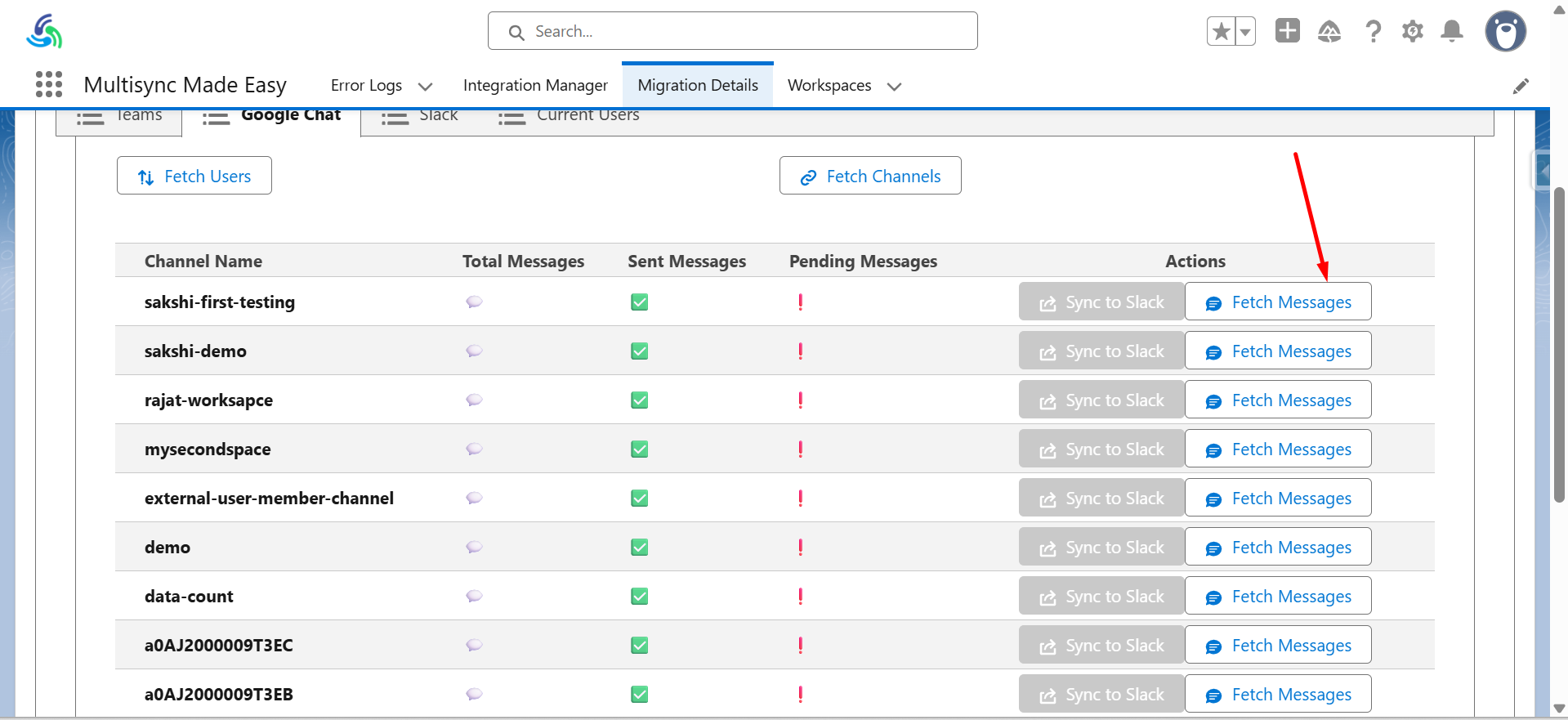
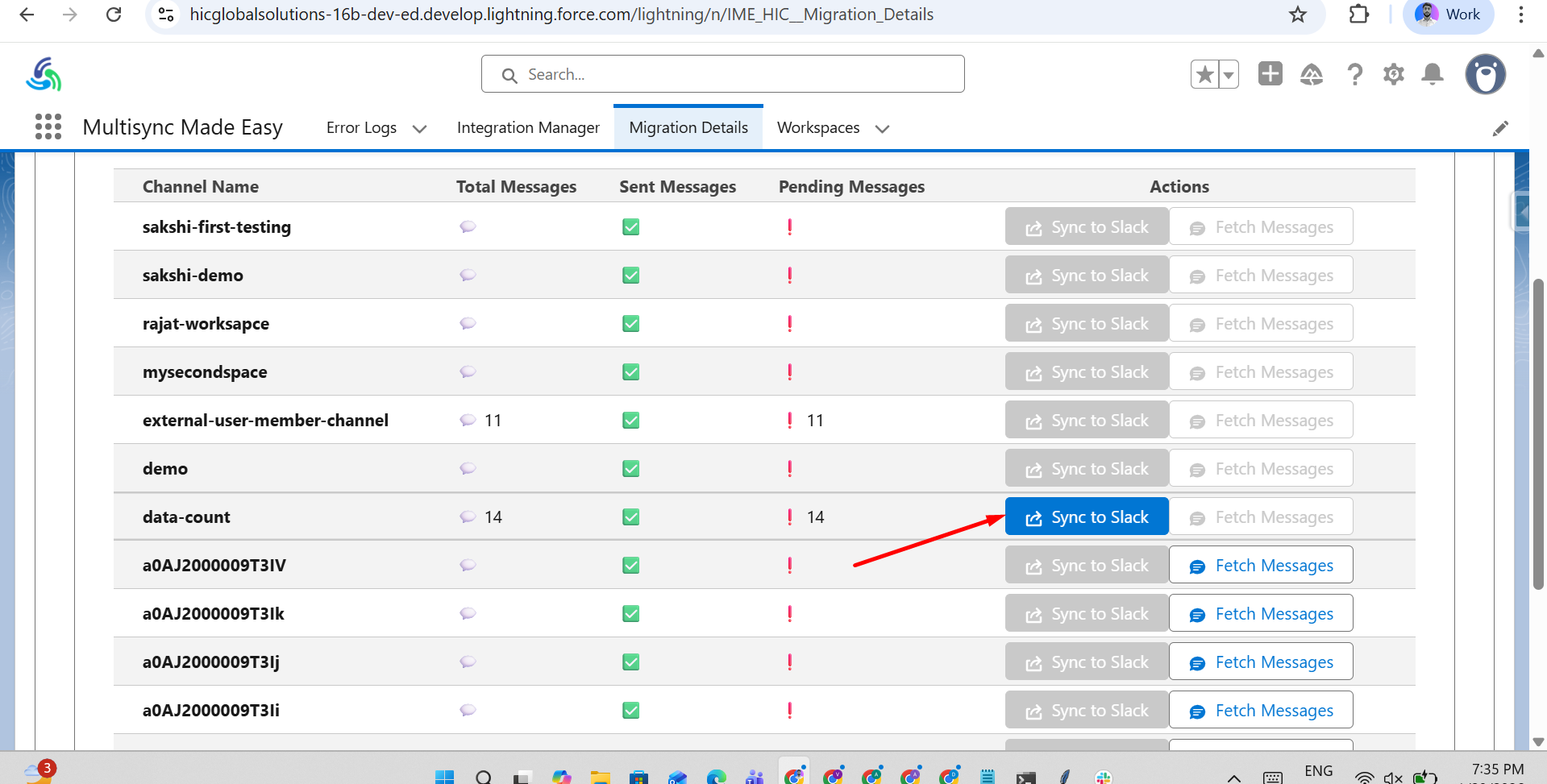
Click on “Fetch Messages” and refresh and then click on “sync Messages” and check the messages from google chat are sync in the slack Channels.
▾
13
Step 13
For Personal Messages Select any Channel and then “Fetch the Messages” And after refresh Click on “Sync Messages” and then check the messages on different user’s From slack.
14
Step 14
For Group Messages Select any Group (eg. a0AJ2000009SmKY) and then “Fetch the Messages” And after refresh Click on “Sync Messages” and then check the messages on different user’s From slack.
Functionality:- Messages that are not sync will show in the app after deleting the all messages these messages will not be deleted and remain pending