

Connecting MS Teams with Slack often sounds complex; handling data transfers, preserving conversations, and avoiding disruptions can quickly become overwhelming. But what if you could move everything seamlessly without dealing with technical challenges?
In this article, we’ll show you how to securely and efficiently migrate your chats, files, and users with Slack: a simple, automated solution designed to make your transition smooth, fast, and error-free.
But before migrating from Microsoft Teams to Slack, let’s see what you actually need first.
Prerequisites Before Integrating MS Teams with Slack
Before you begin the integration process, it’s important to ensure that all required permissions, licenses, and approvals are in place. A successful MS Teams-Slack integration depends not just on setup steps but also on secure access to user data across both platforms.
Microsoft Teams (Microsoft 365) Requirements
To access and sync data from MS Teams, each user must have an active Microsoft 365 Business Standard license (or higher). This ensures access to chats, messages, and shared files within Teams.
Additionally, your IT/admin team needs to perform a one-time setup in Microsoft Azure by creating a secure application. This allows MSME to connect safely with your Teams environment. As part of this setup, the following credentials are required:
- Tenant ID
- Client ID
- Client Secret
A Global Administrator must also approve this application at the organization level. This is a mandatory step to enable secure tenant-wide access.
User Consent (Critical for MS Teams)
Each individual user must grant permission to access their chats, messages, and files. If a user does not provide consent, their data will not be migrated, resulting in missing conversations or files after integration.
Slack Requirements
On the Slack side, a minimum business plan is required to allow message and file migration.
The Workspace Admin must approve a Slack Bot application. This enables access to channels, messages, and shared files within the workspace.
User Consent (Critical for Slack)
Just like MS Teams, each Slack user must approve access to their data. Without user consent:
- Messages will not be migrated
- Files will be excluded
- Channel history may appear incomplete
Why Consent Matters in Integration
Data privacy and security policies ensure that user data cannot be accessed without permission. This means:
- No approval = No data migration
- There is no workaround for missing consent
Ensuring all users complete the approval process is essential for a complete and accurate integration.
Quick Setup Guide
To simplify, the integration process follows this structure:
Admin Setup → Admin Approval → User Consent (MS Teams & Slack) → Data Access Enabled → Integration & Migration Completed
This ensures your integration is secure, compliant, and fully functional without data loss. Let’s check out the detailed step-by-step guide to integrate MS Teams with Slack:
Step 1: Install the MultiSync Made Easy App.
To begin, navigate to the Salesforce AppExchange and search for MultiSync Made Easy.
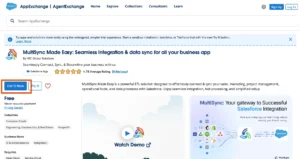
Next, click on the “Get It Now” button and follow the steps to install the Multi Sync Made Easy app into your Salesforce org. After installation, open the App Launcher (that grid icon in the top left) and search for “MultiSync Made Easy” to access the app.
Step 2: Connect MS Teams with MultiSync
After logging in to MS Azure, click on the View Button like below.
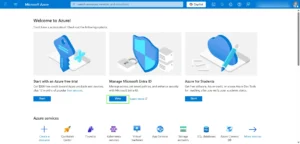
Then click on Applications number.
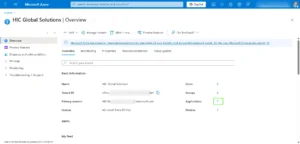
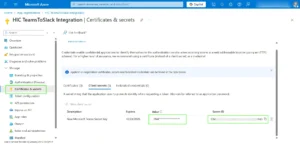
After navigating to the Applications section, click the ‘Certificates & secrets’ tab. ‘Value and Secret ID’ will appear on this screen. For further use, copy the given credentials.
Note: You have to go back to the MultiSync home page, then search for the MS Teams platform.
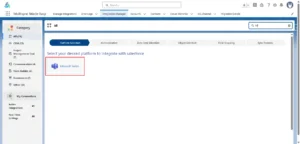
Now name your integration, then paste your Client ID and Client Secret. Then, click on the “Select and Authenticate” button.
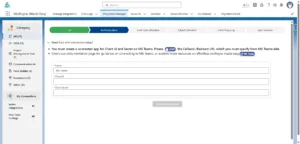
Step 3: Map Salesforce Objects with MS Teams
Select whether you would like to import or export data.
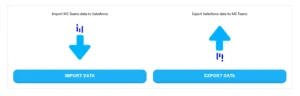
After that, select the Proceed button for the object you want to import data for.
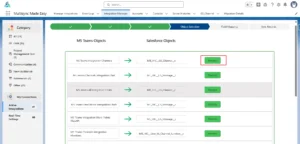
Then, you can change the field mapping or go with the default one.
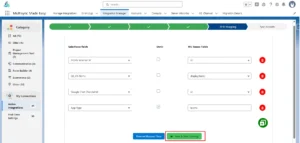
If you want to create a custom field mapping, you need to click the “Add” button.
Step 4: Sync Data
You can schedule the data sync for a specific time or can sync it instantly.
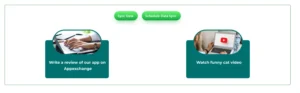
Once the sync is complete, all data from the selected object is first added into Salesforce. After that, the entire dataset is automatically transferred to Slack, where you can track the migration progress in real time.
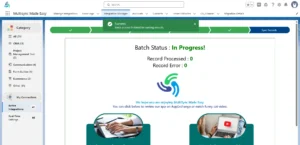
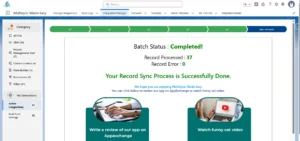
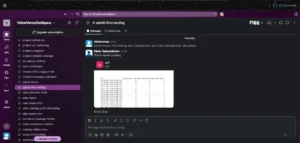
You will see that all the channels will be migrated to Slack platforms.

Conclusion
Migrating from Microsoft Teams to Slack doesn’t have to be complex, and with this app, it isn’t. Instead of dealing with manual processes, data inconsistencies, or technical challenges, you can seamlessly transfer chats, files, users, and channels with complete accuracy and control.
With a fully automated approach, MultiSync Made Easy connects and migrate MS Teams to Slack and ensures real-time tracking, secure data handling, and precise mapping, so your team experiences a smooth transition without disruption.
If you’re looking for a reliable, stress-free way to migrate to Slack and preserve your entire communication history, this app is the solution built to make it happen effortlessly.