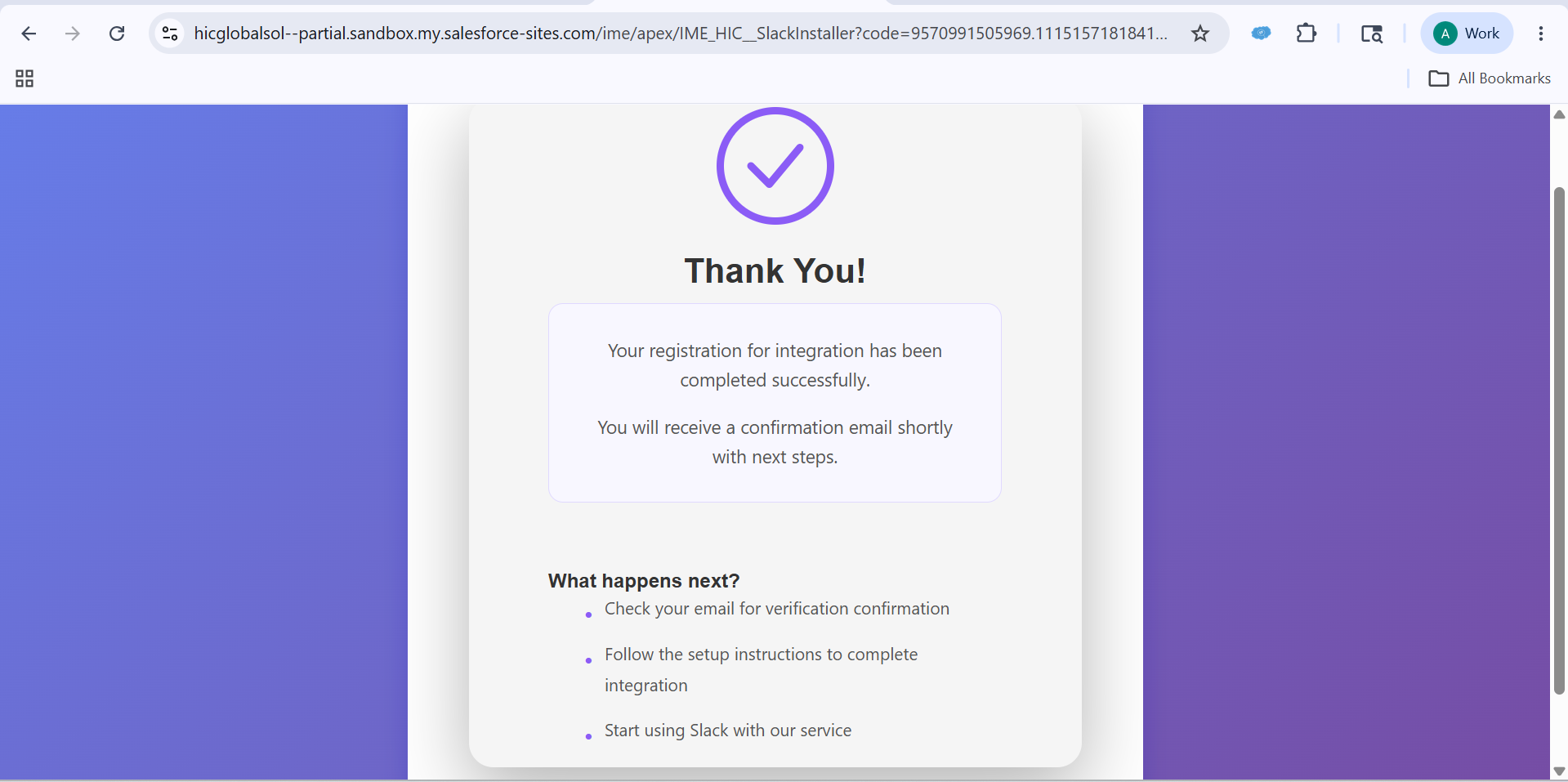
Setup — 7 Steps
1
Step 1
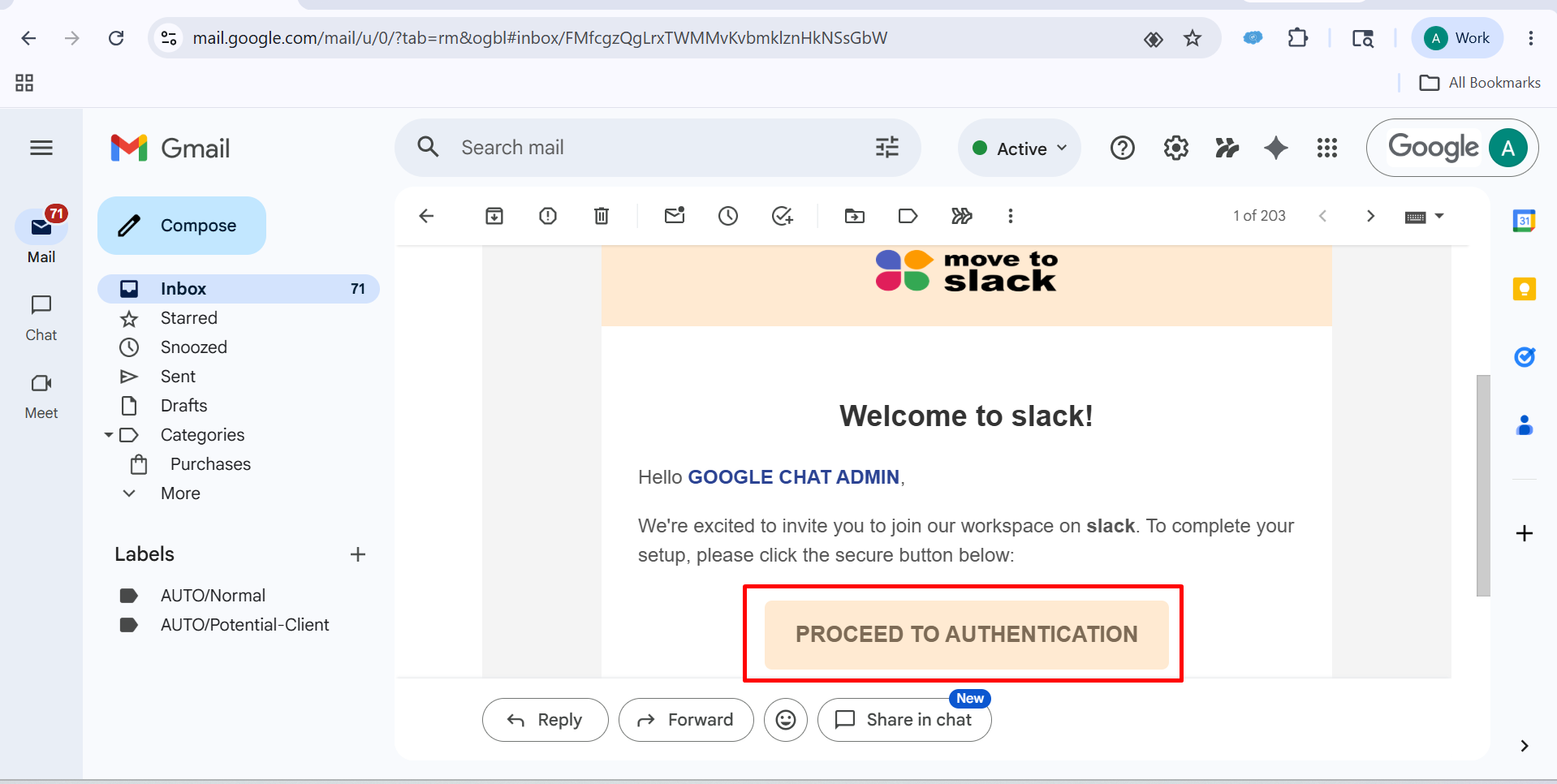
Please go to your email, open the inbox, and open the related Move to Slack email and click on “Proceed to Authentication".
▾
2
Step 2
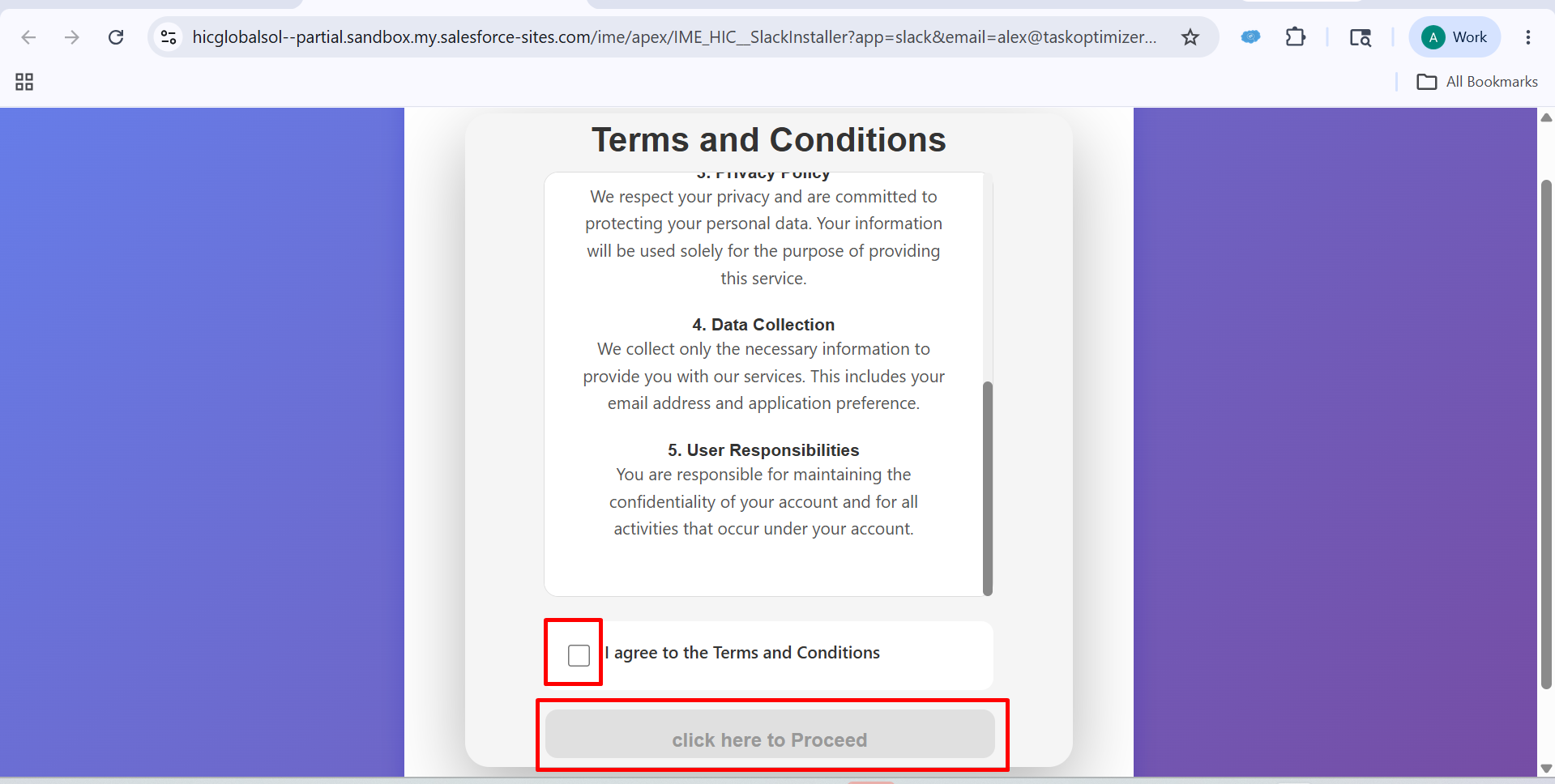
After clicking on Proceed to Authentication, you will see a dashboard like this.
▾
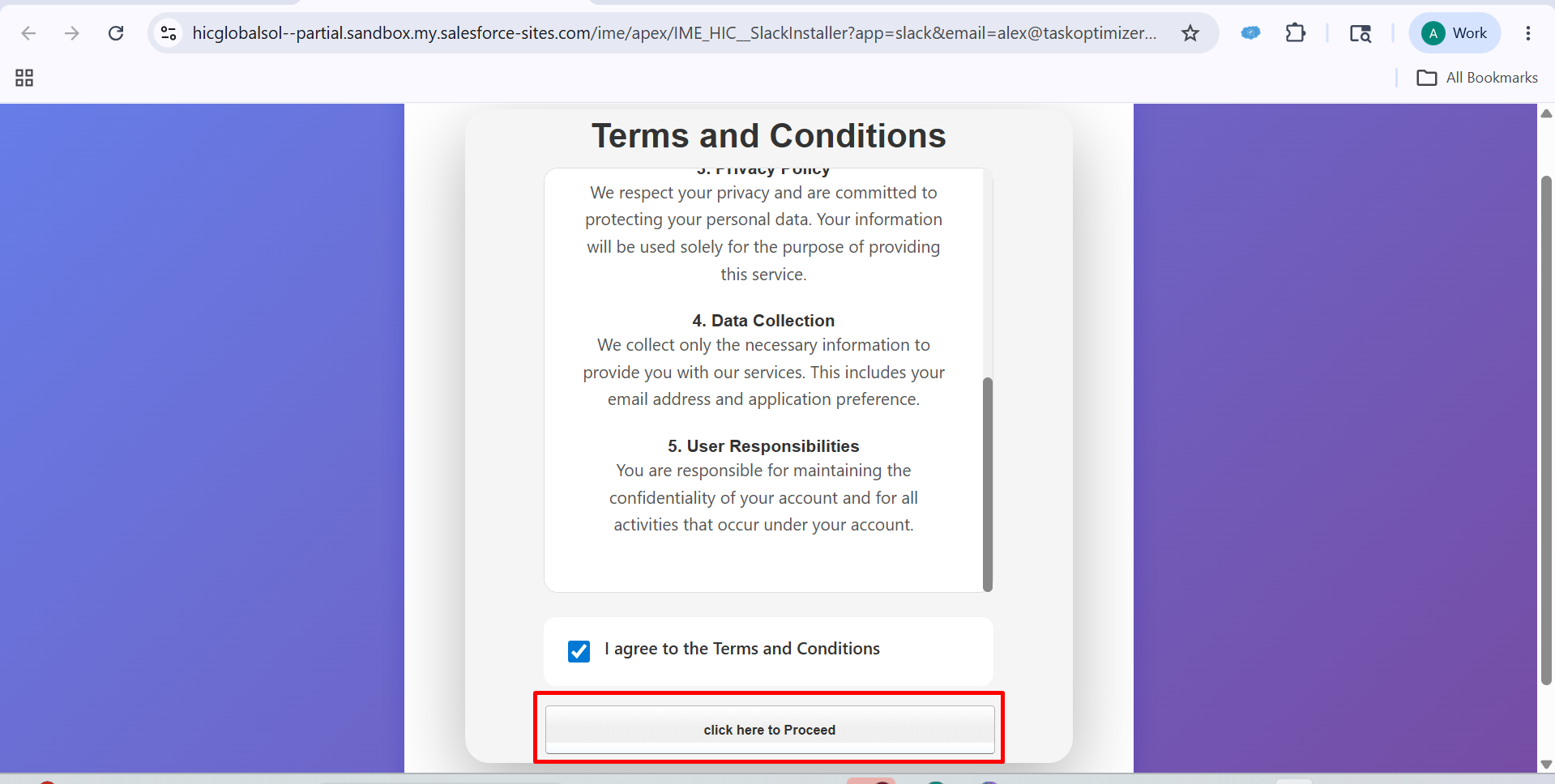
After that, Check the "I Agree to the Terms and Conditions” checkbox and click on “Click Here to Proceed.”
3
Step 3
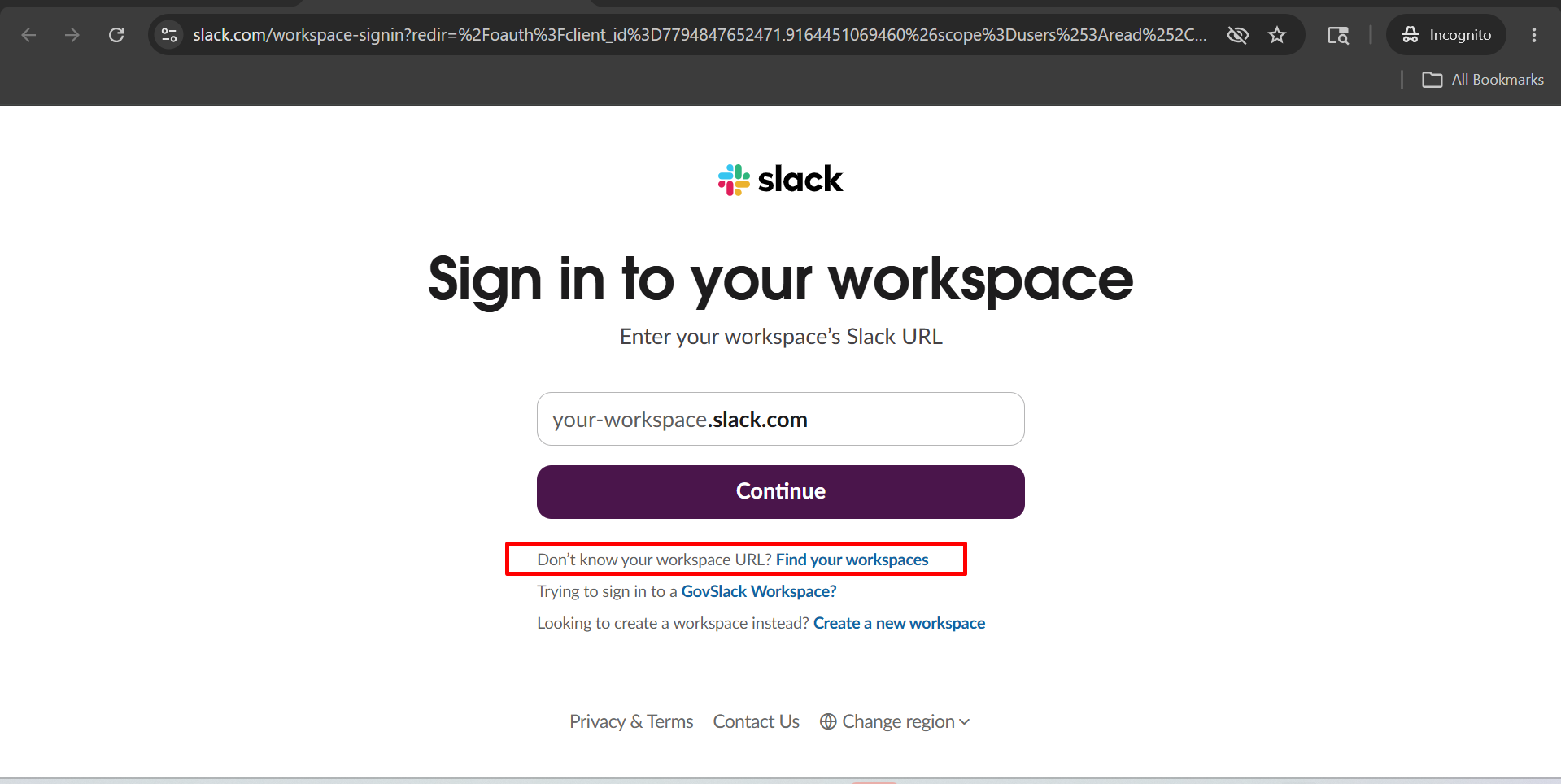
After that, you will see a dashboard like this, and Choose Find your Workspace.
▾
4
Step 4
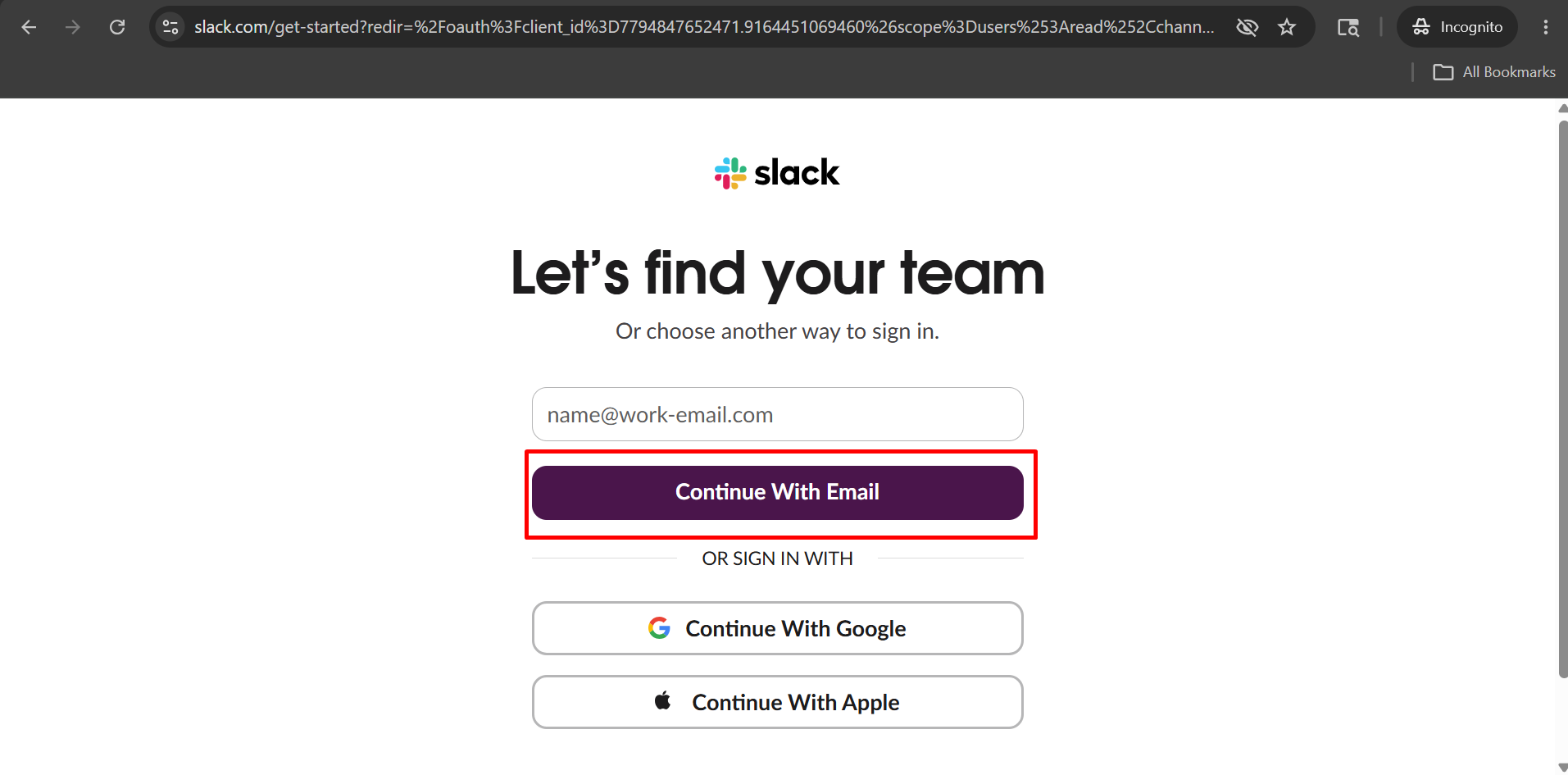
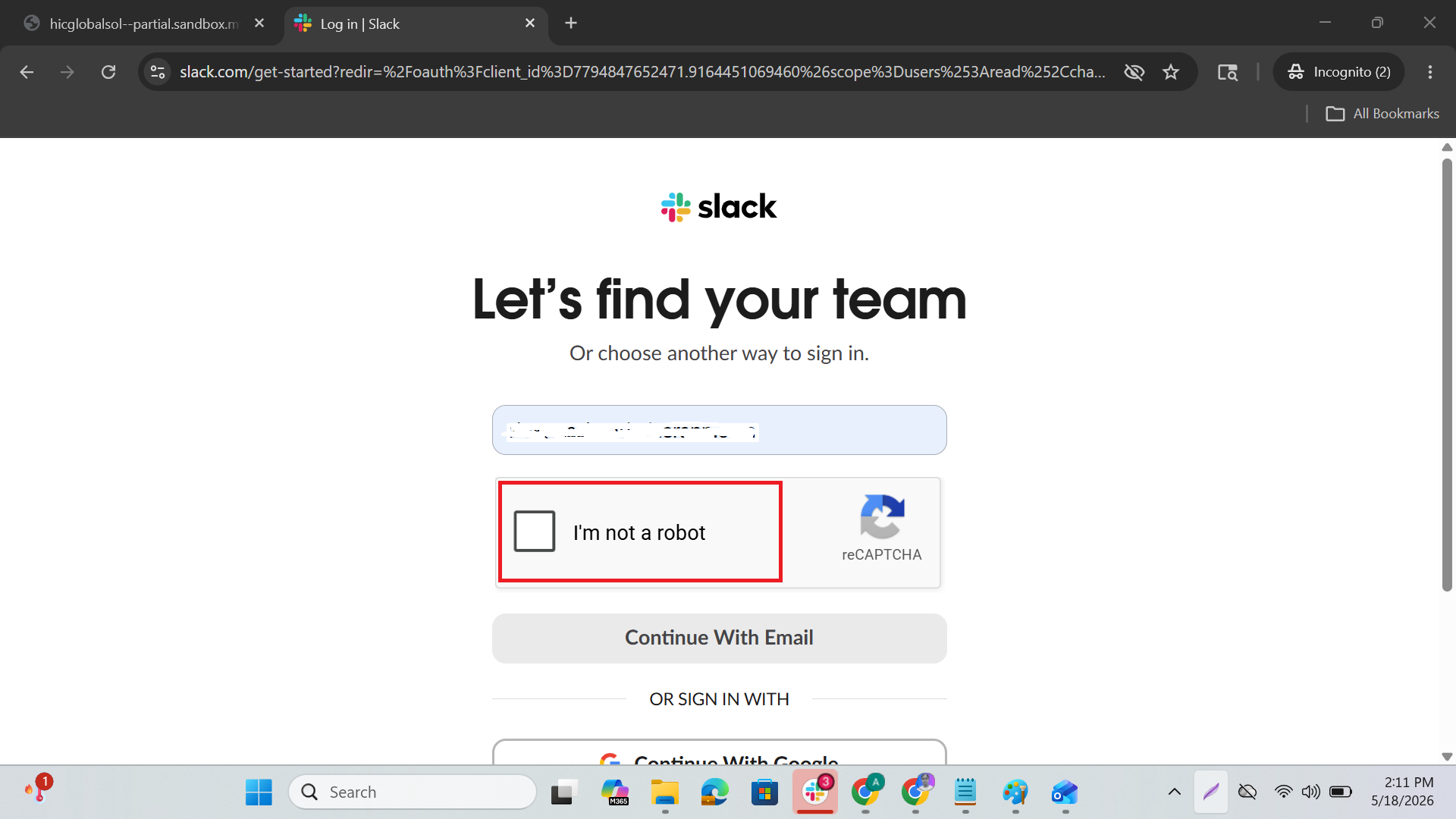
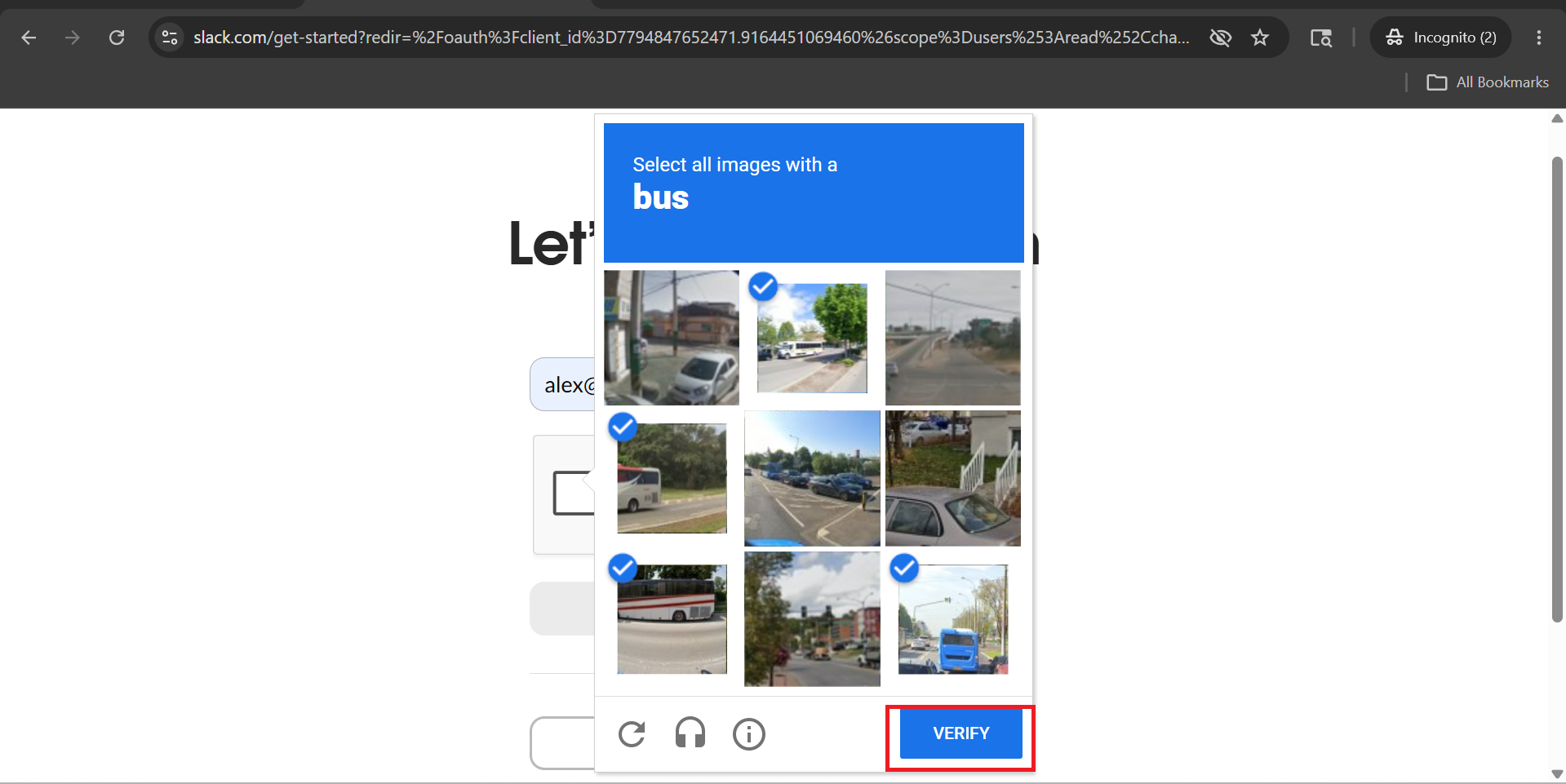
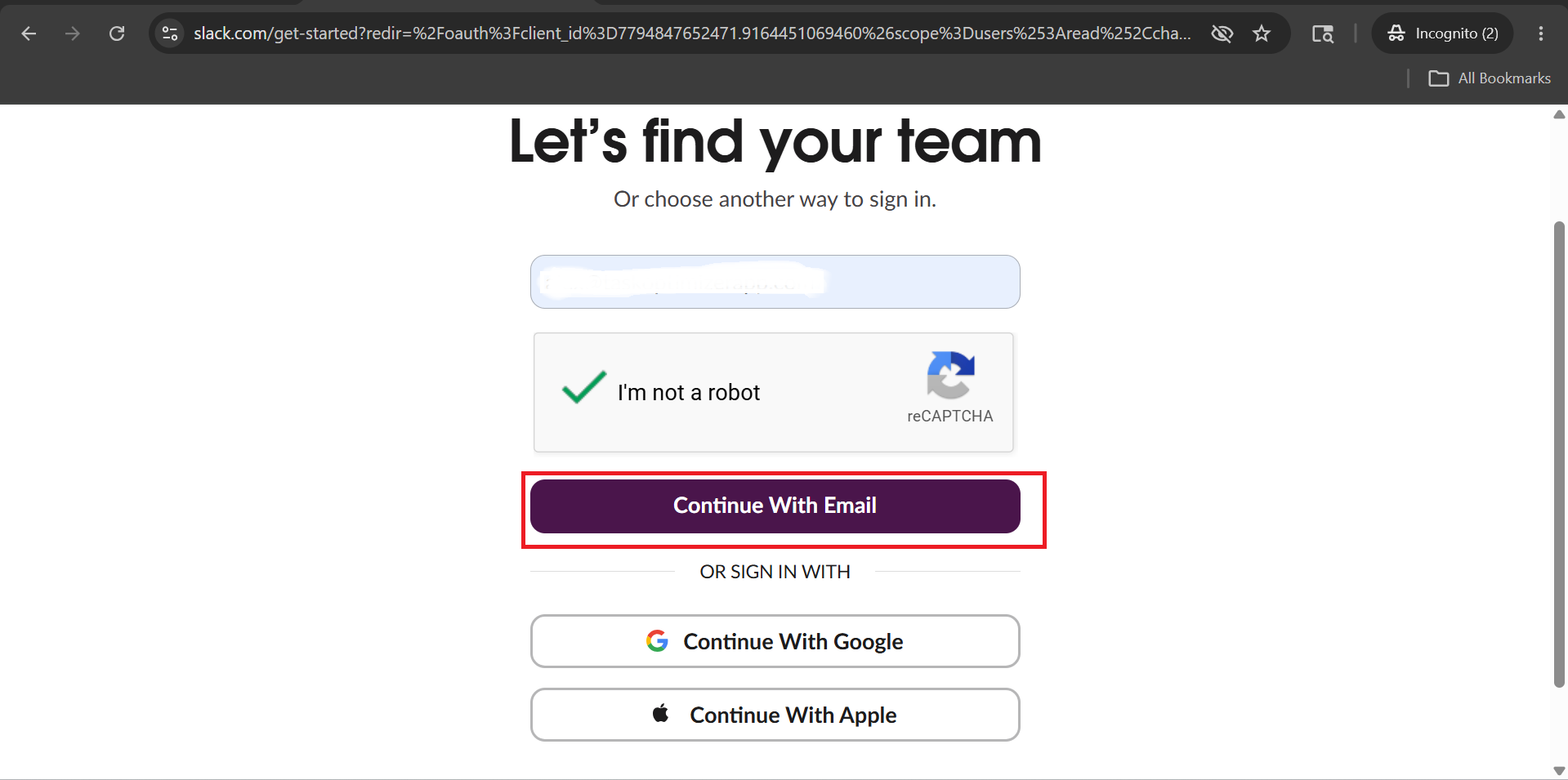
After that, enter your email address and click on “Continue With E-Mail.” Then, check the “I’m not a robot” checkbox, select the images according to the instructions shown, and click on “Verify.” Once verified, click on “Continue With E-Mail” again.
▾
5
Step 5
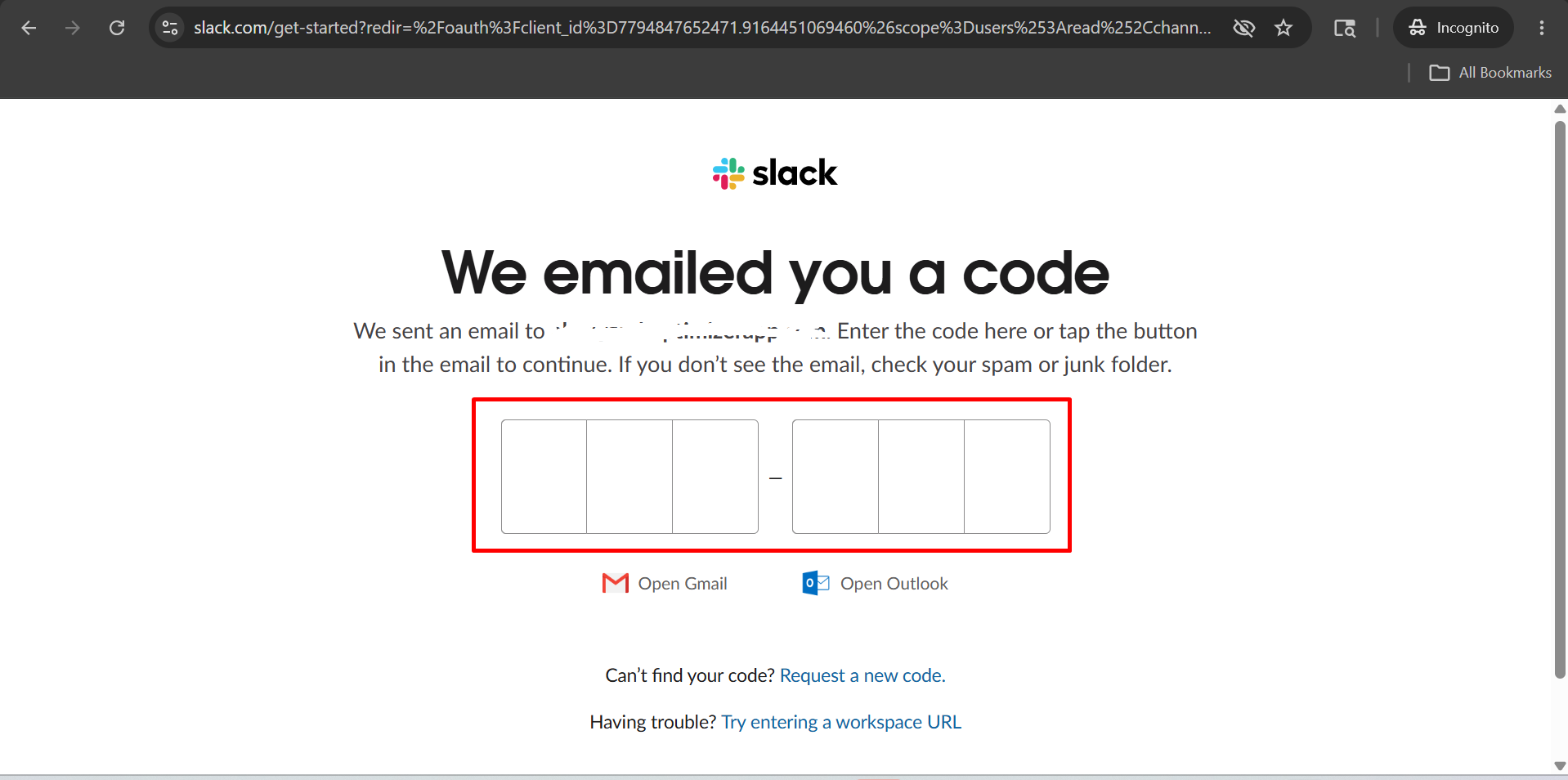
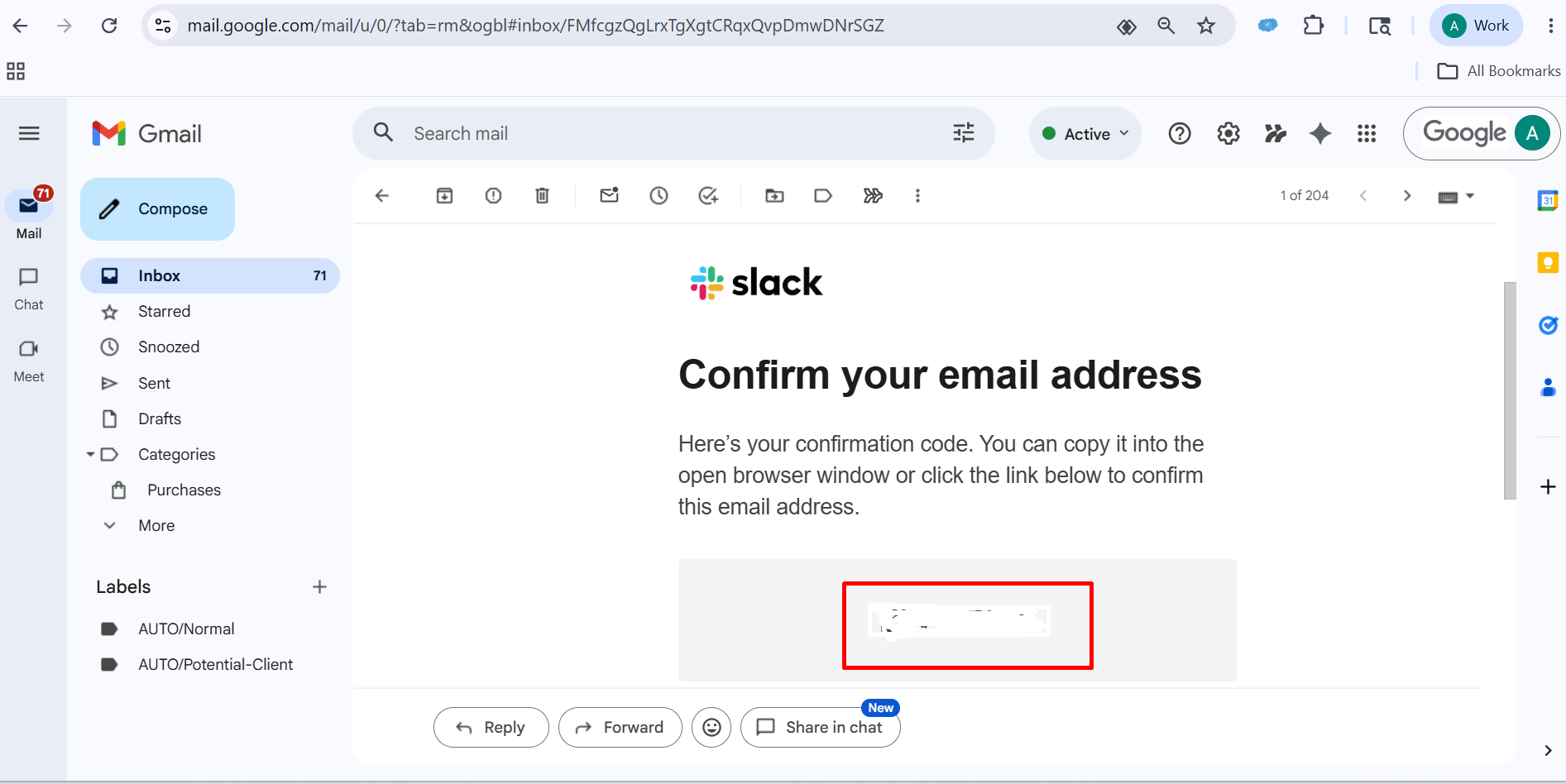
After that, you will see a dashboard like this. A verification code will be sent to your email. You need to enter that code to complete the verification process.
▾
6
Step 6
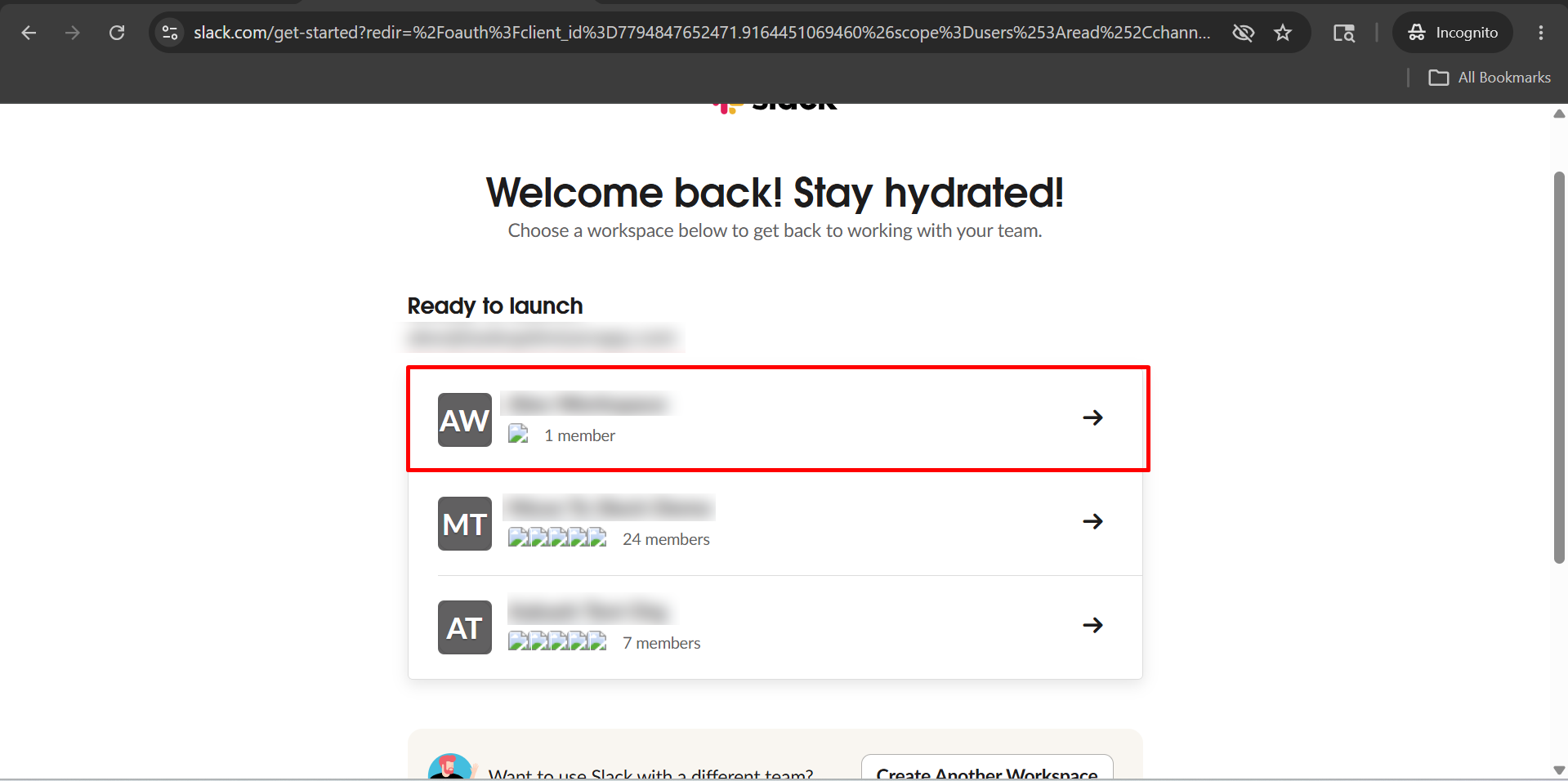
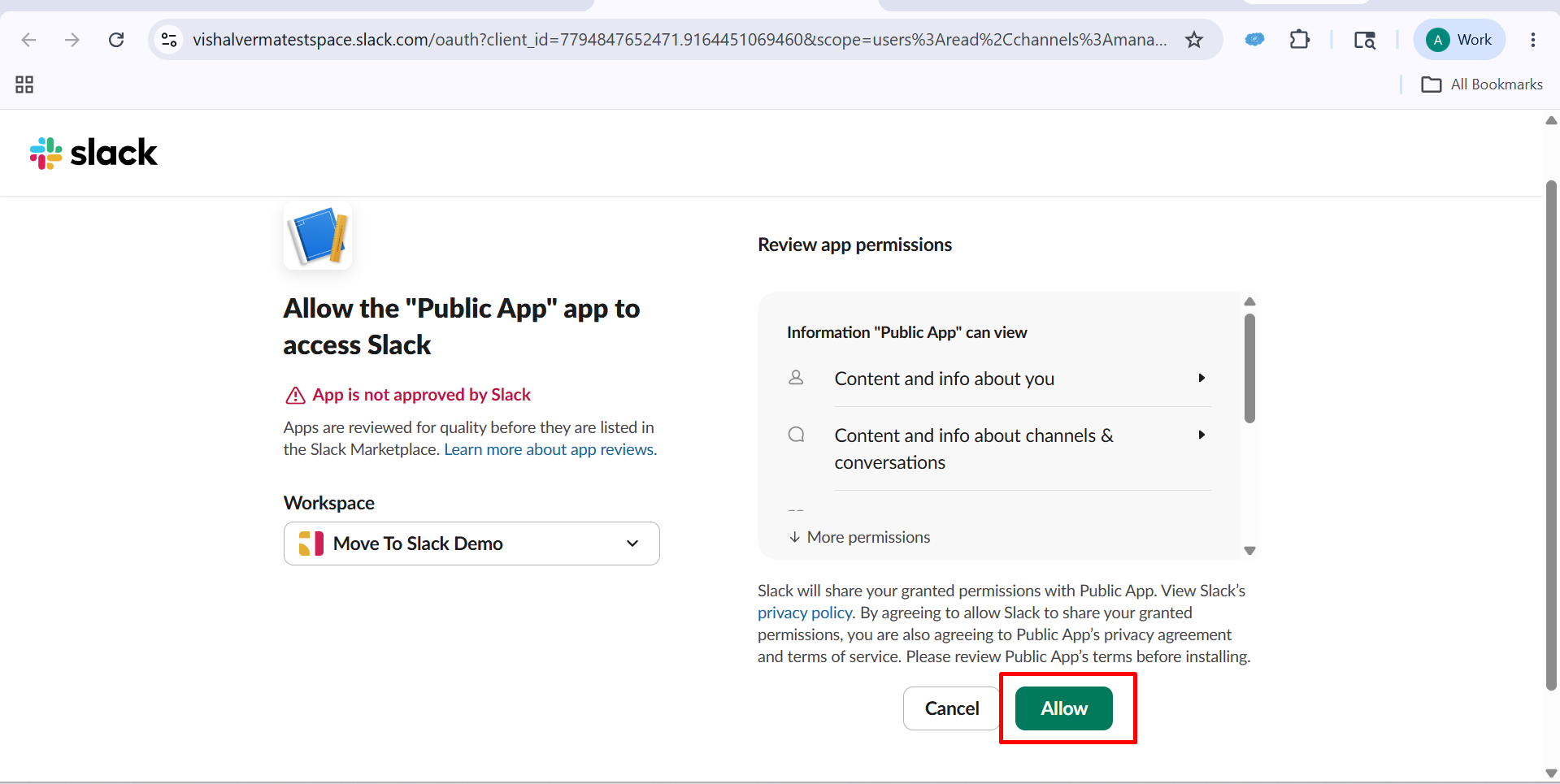
After that, you will see a dashboard like this, and you will need to choose your workspace and after that Click on Allow.
▾
7
Step 7
After that, you will see a dashboard like this.
▾