Setup — 5 Steps
1
Step 1
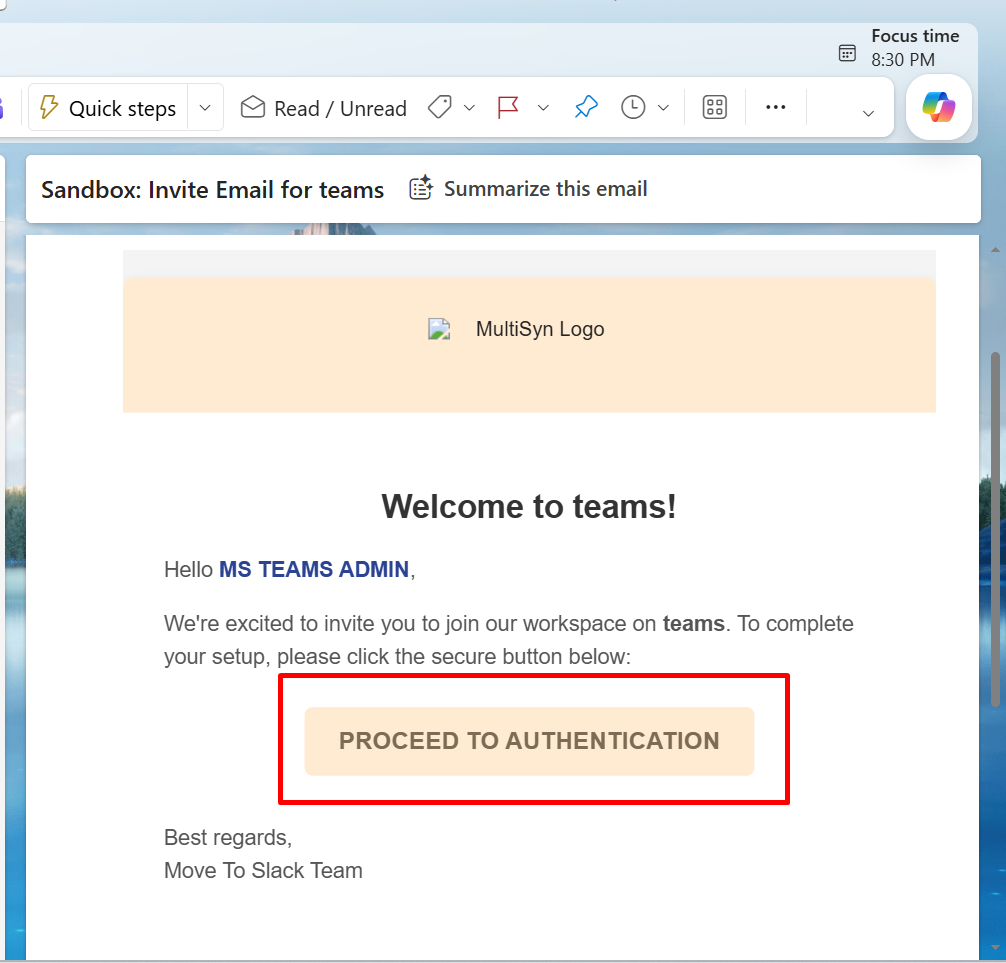
Please go to your Outlook, open the inbox, and open the related Move to Slack email and click on “Proceed to Authentication".
▾
2
Step 2
After clicking on Proceed to Authentication, you will see a dashboard like this.
▾
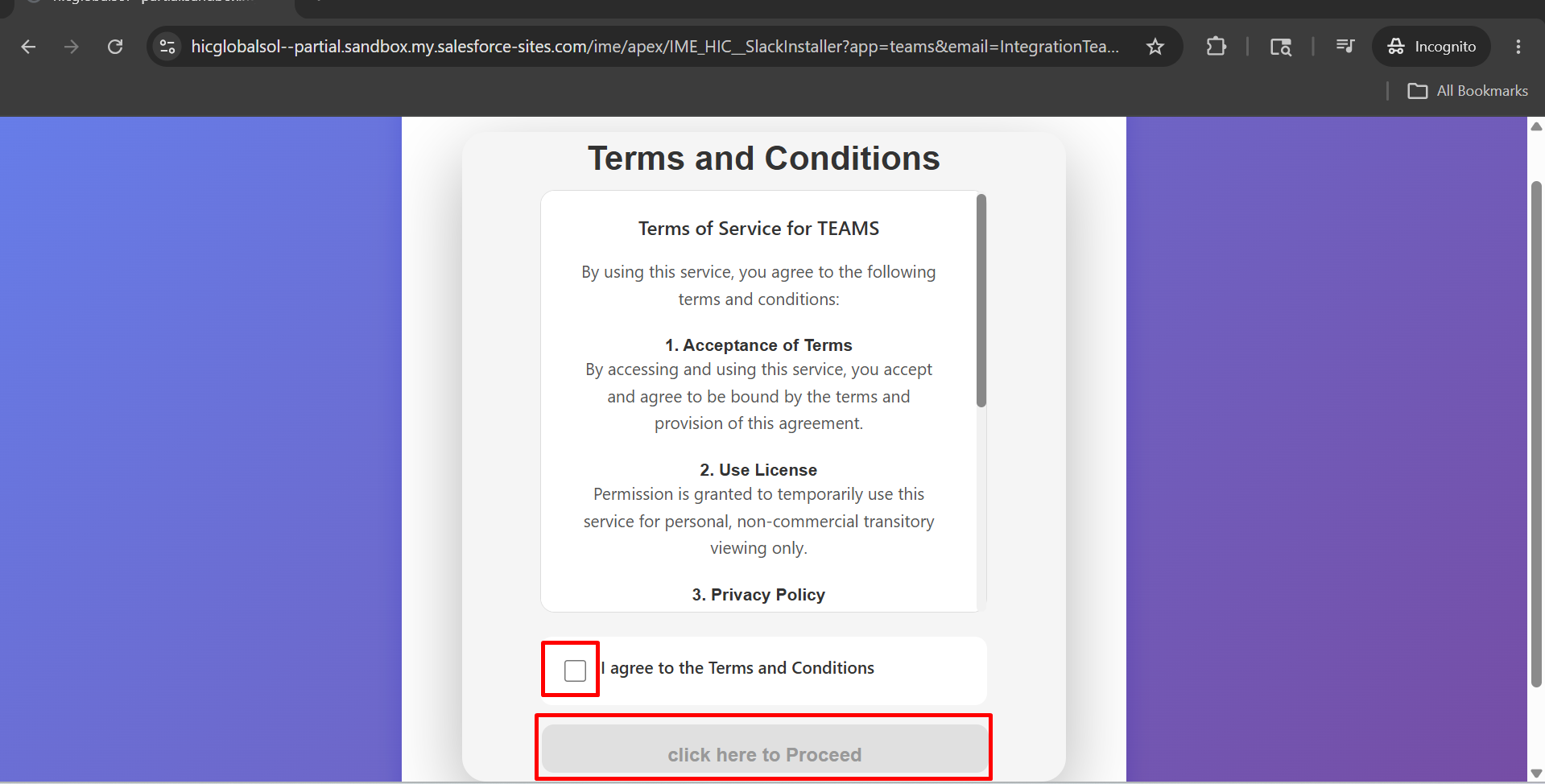
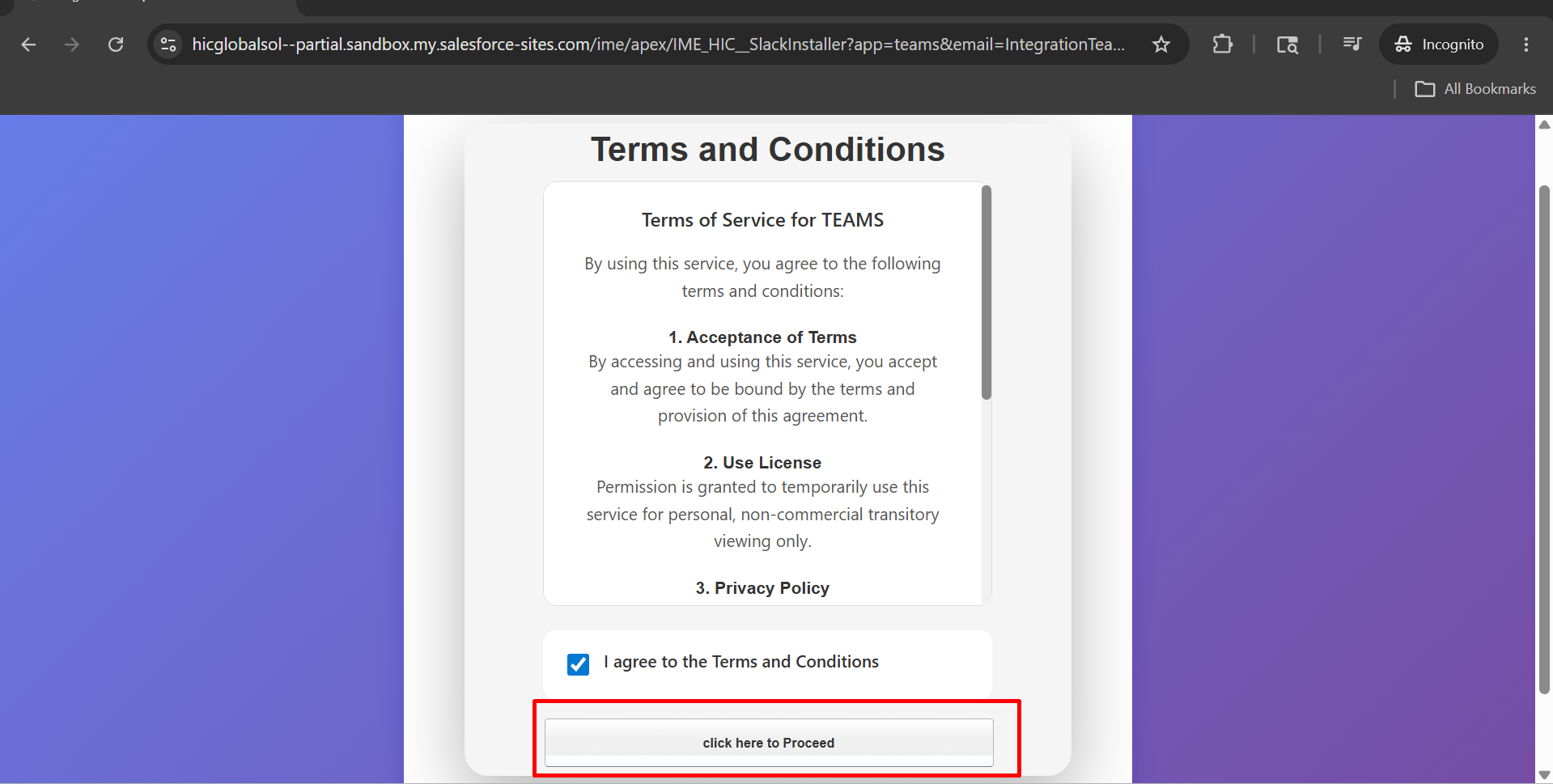
After that, Check the "I Agree to the Terms and Conditions” checkbox and click on “Click Here to Proceed.”
3
Step 3
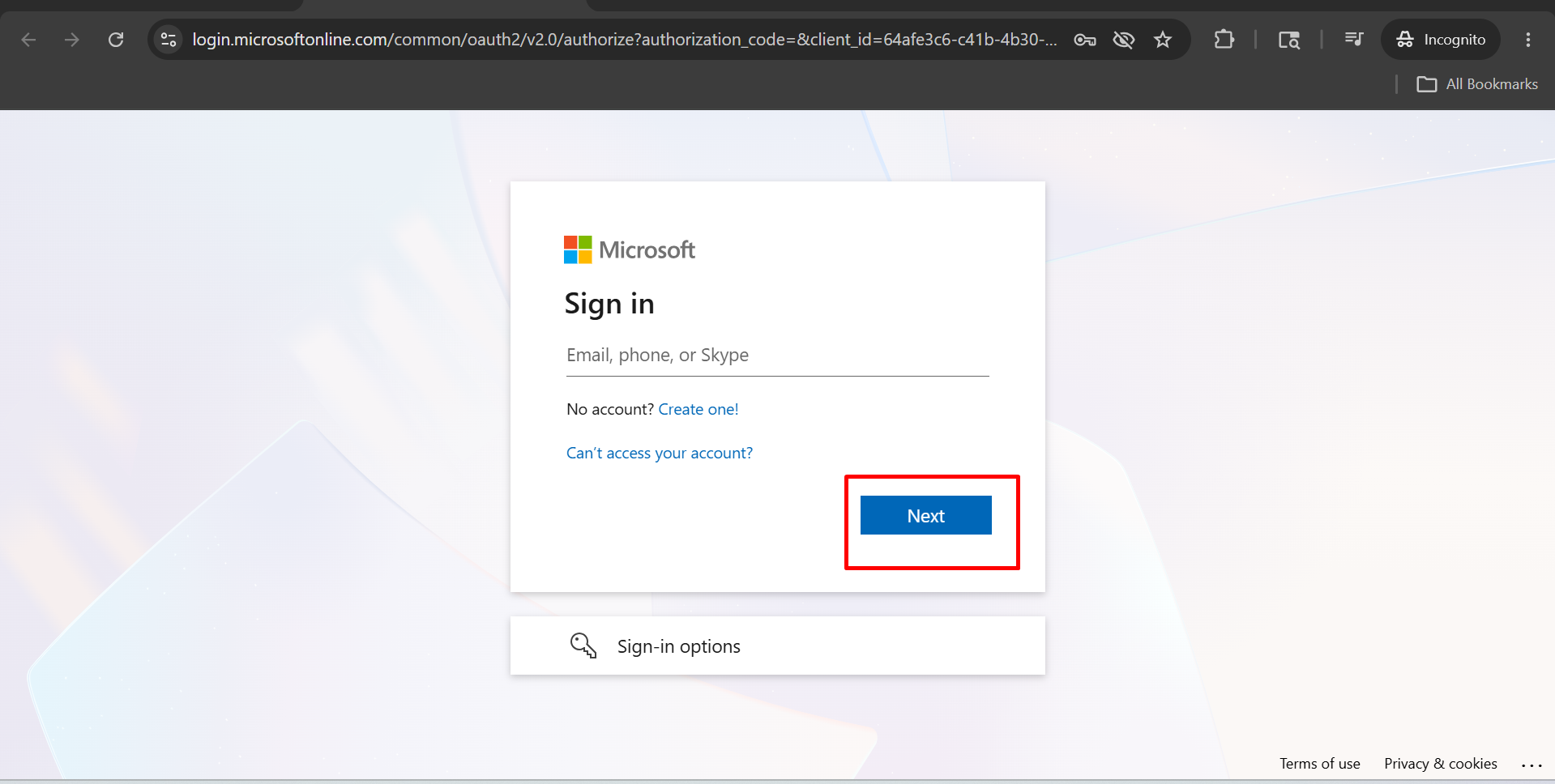
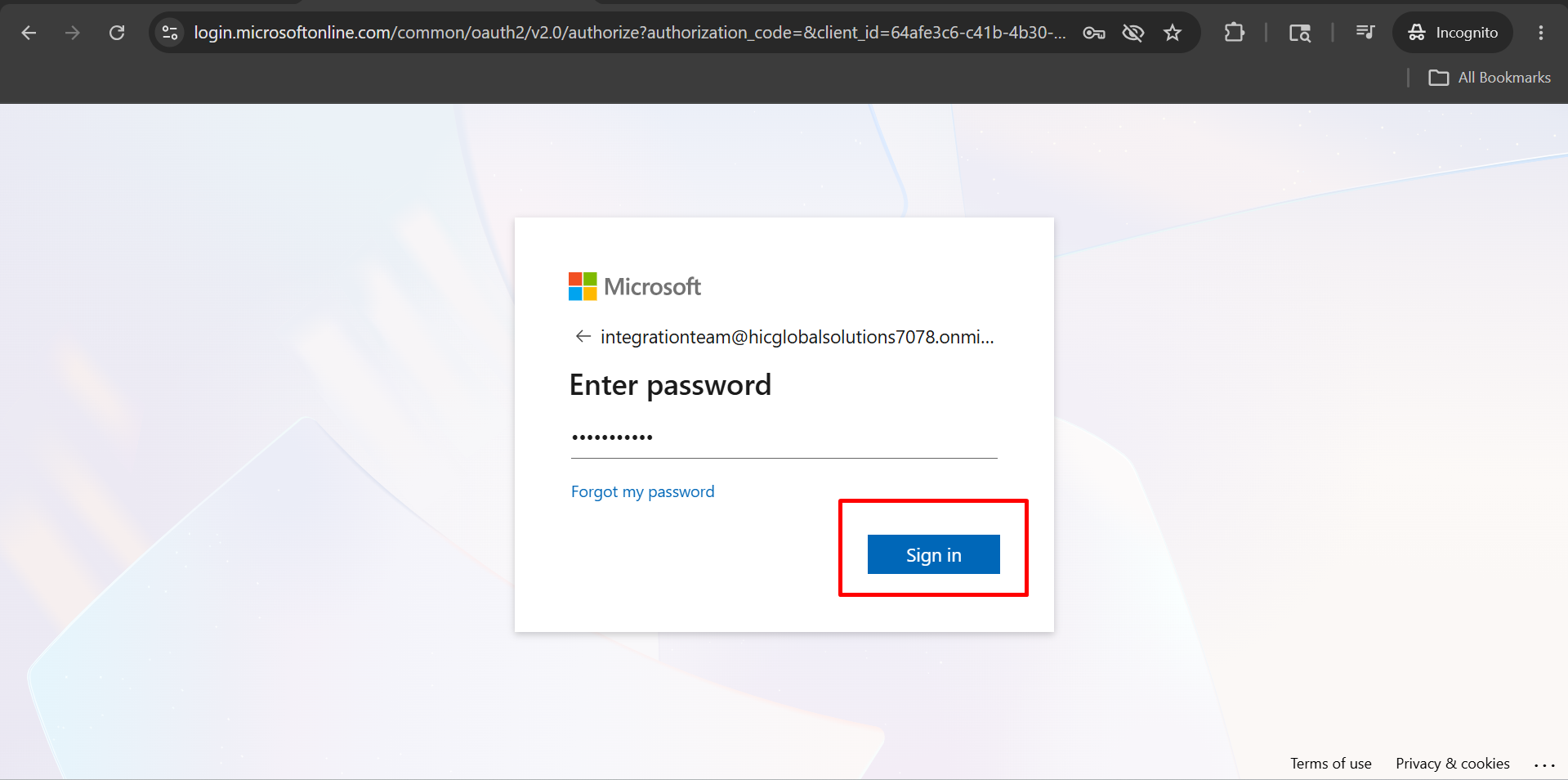
After that, you will see a dashboard like this, and you will enter your email and Click on Next and After that Enter Your password and Click on Sign in.
▾
4
Step 4
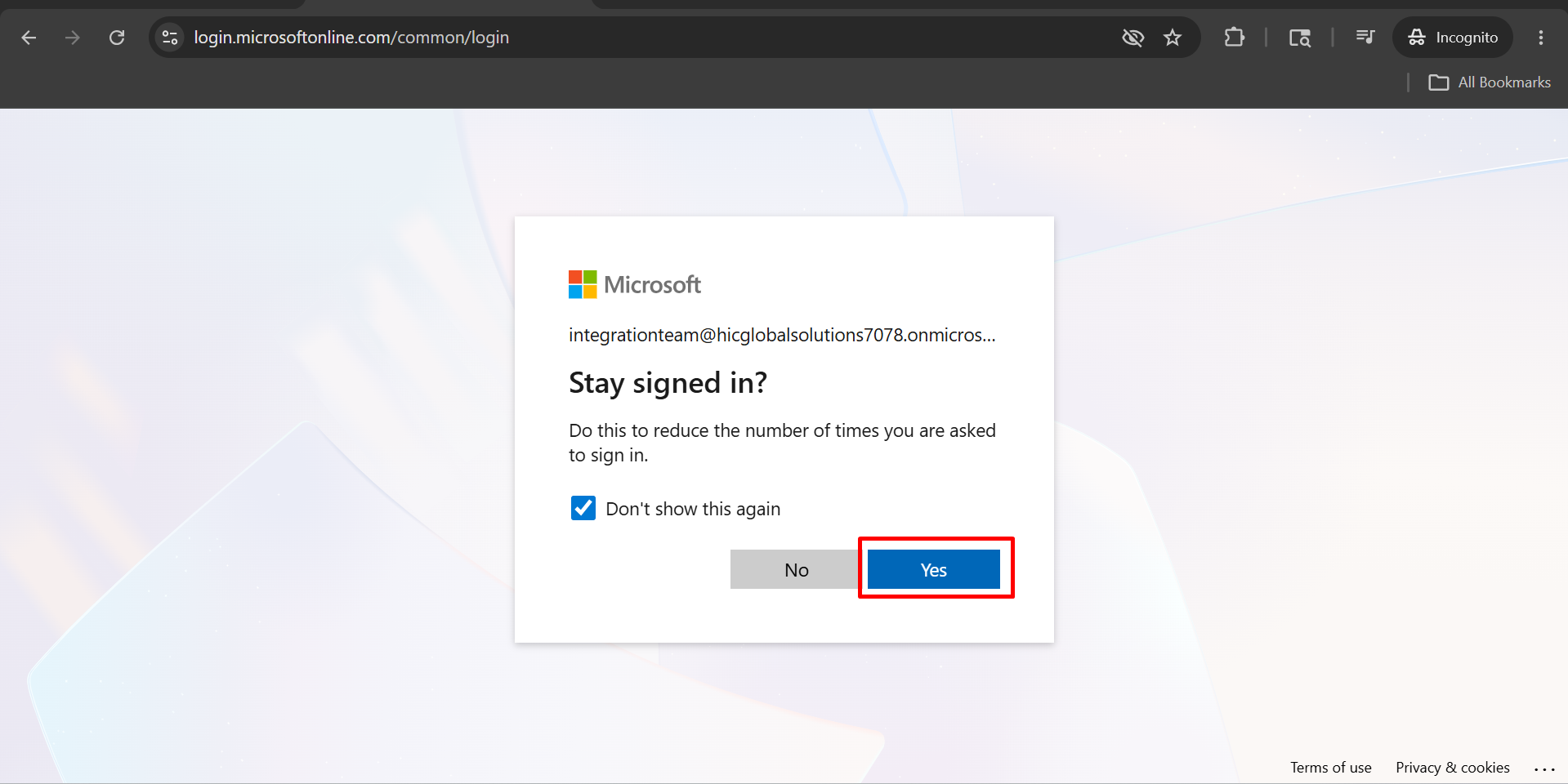
After that you will see a dashboard like this and Click on Yes.
▾
5
Step 5
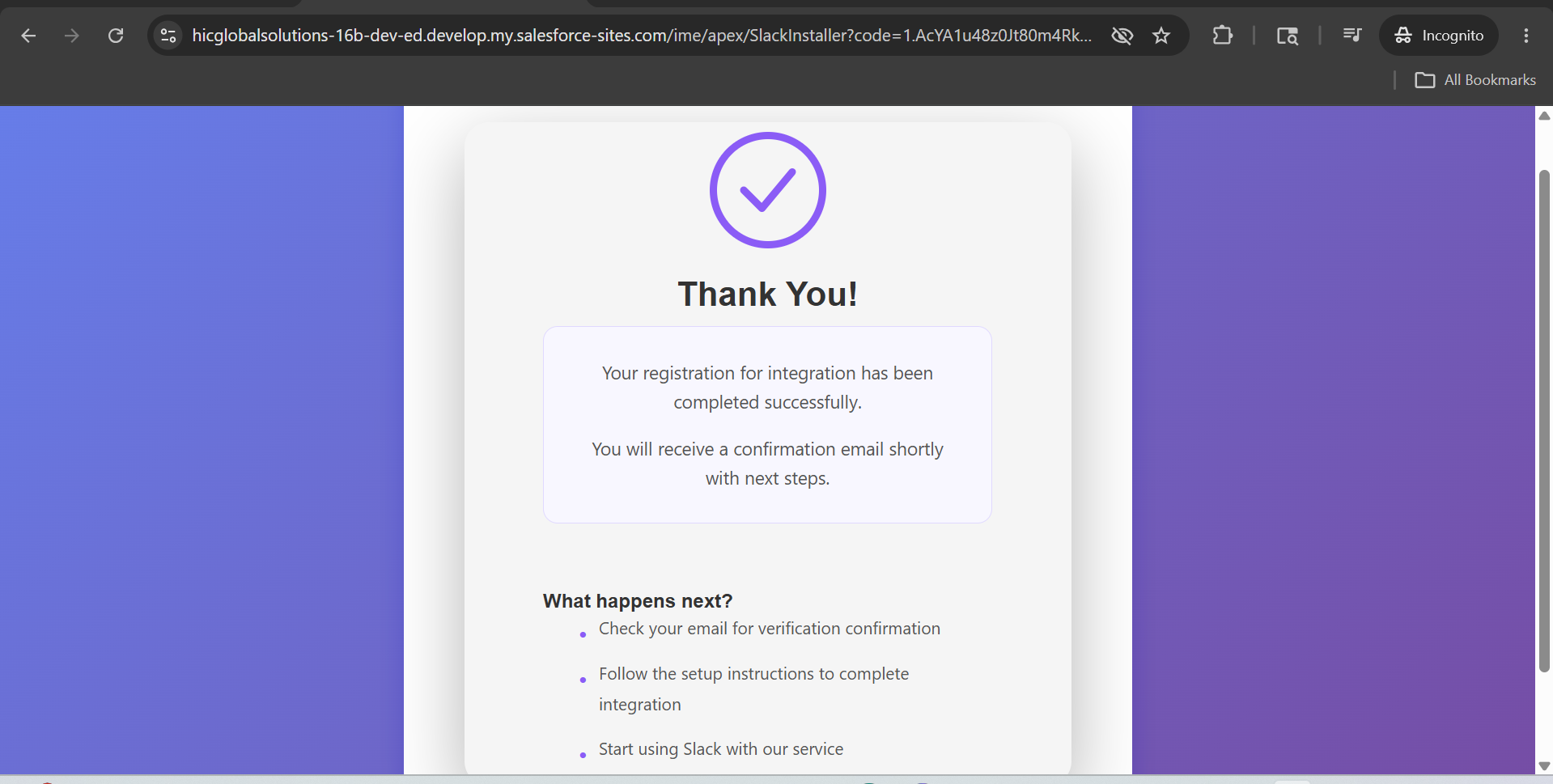
After that, you will see a dashboard like this.
▾